
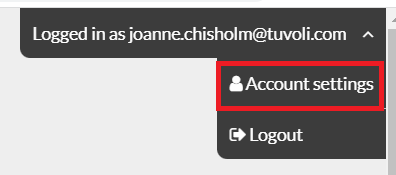
- To view billing, go to the top right corner of the screen where your log in email is displayed. Click on your email address. A drop down will appear. Select "account settings". You can also choose the "Account" feature in the vertical menu on the left hand side.
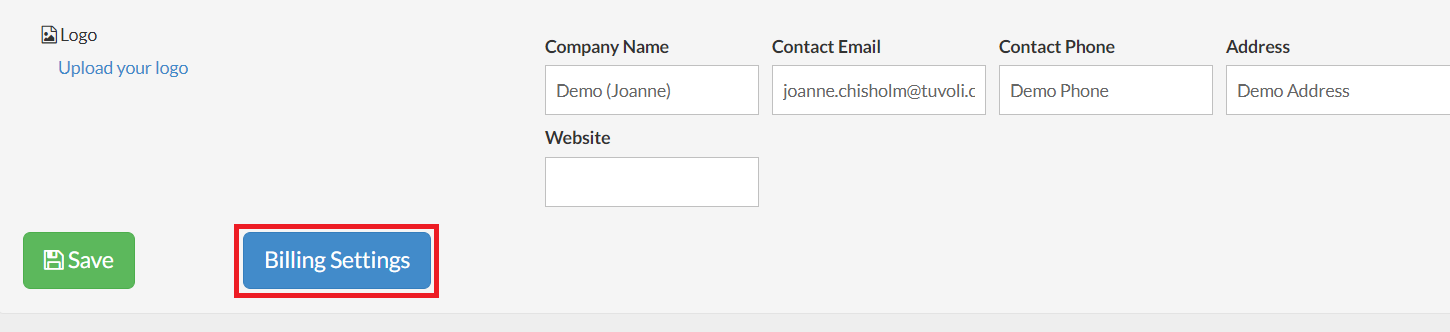
- Select "Billing settings"
- This will bring you to the billing dashboard. On this view, you have access to all credit cards on file including your default payment for monthly charges, your subscription level, renewal date, billing information and invoice history. Prices per subscription vary based on the access and capabilities enabled.
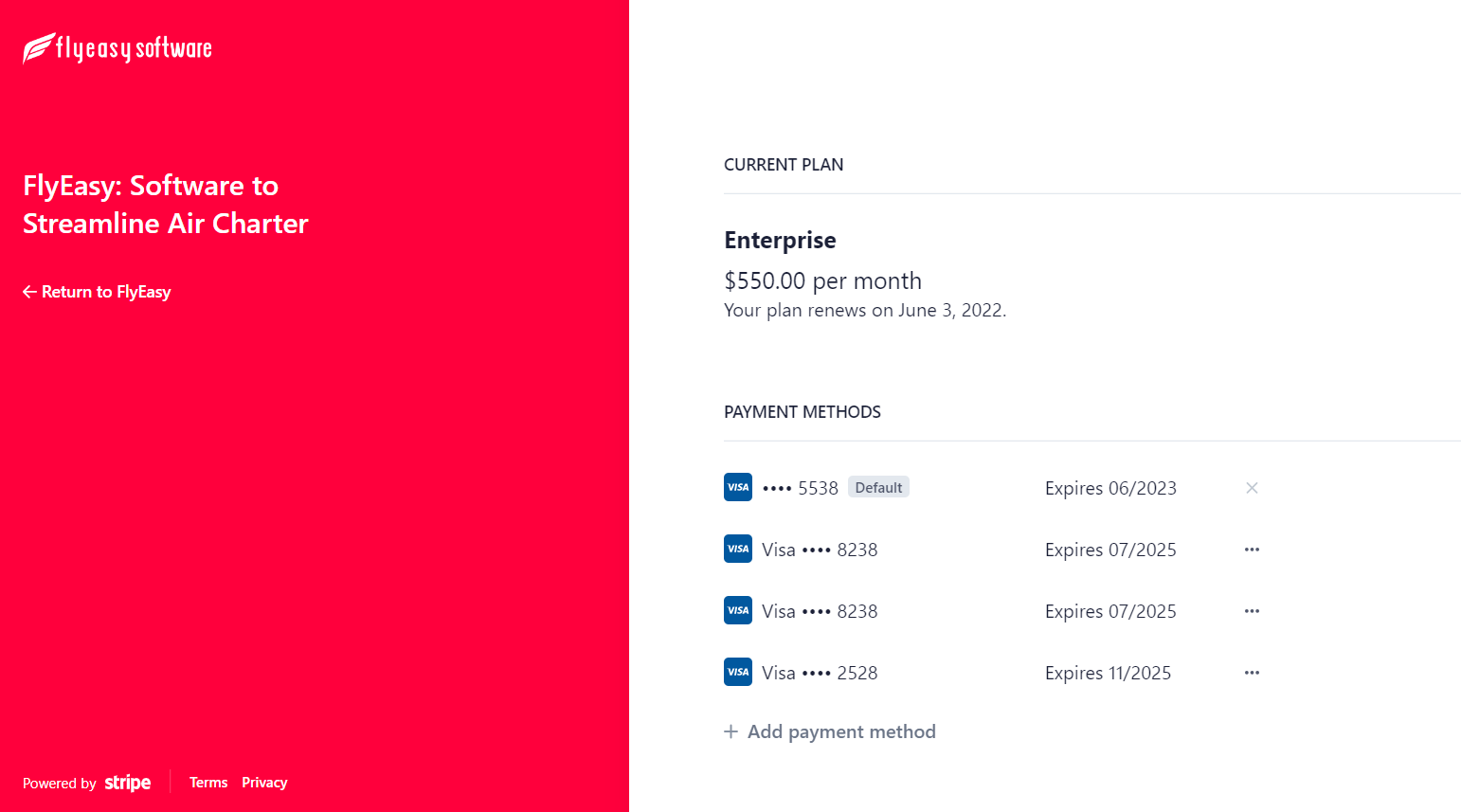
- To remove a previously added credit card #, click on the 3 dots to the right of the card #. This will allow you to delete previously listed credit cards or change the default payment. The system requires 1 credit card listed as "default". The system will not allow you to delete all credit cards.
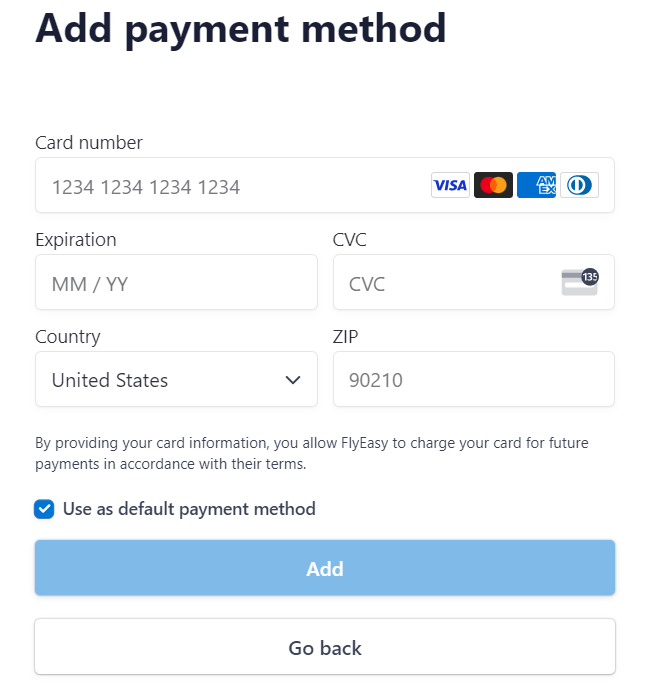
- To add a new payment method, click "add payment method". Required fields: credit card number, expiration, CVC, country & zip of the cardholder. Click "add" (even though the color of the "add" button is not bright blue, it is active). If you want to have the newly added card as the default, check the box next to "use as default payment method". Once you have added the new payment method, select "Go back" to put you back in the billing dashboard.
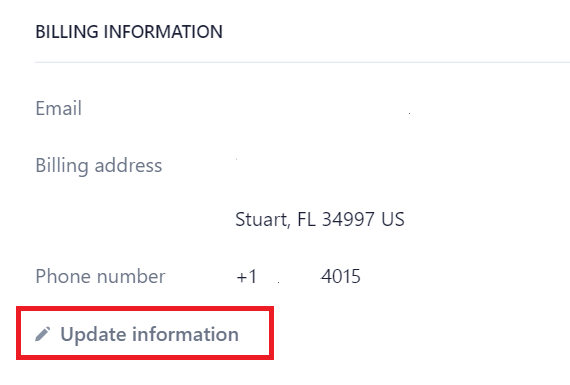
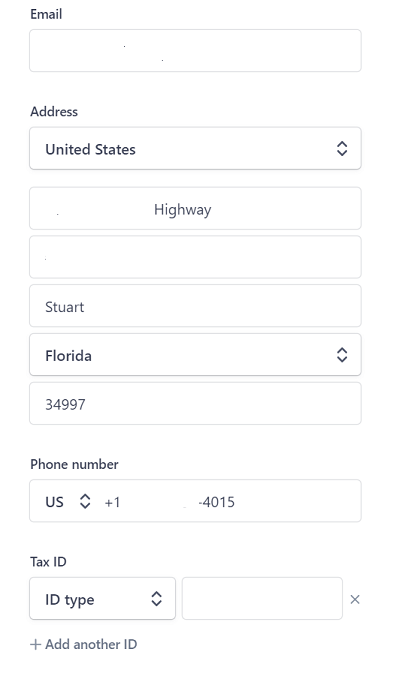
- Billing information- This section will show you billing contact details including name and address on file. If you want to change or update this information, select "Update information"
- Once you have updated what you need, click "save"
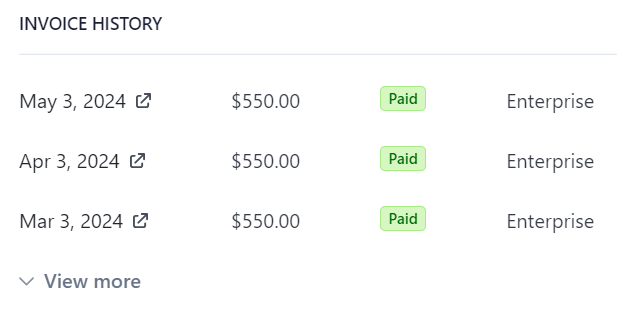
- If you scroll down to the bottom of the billing page, you can access your current and past invoices. Click on the invoice and view.
- This completes the overview of the capabilities of the billing feature. If you have any questions or would like to provide feedback for future enhancements, please reach out to help@tuvoli.com