
"I sent my customer a quote which they signed and I confirmed. However, they now want to switch to a different quote. Do I have to start over and create a new opportunity?"
No, you do not need to start over. Once the customer has completed the DocuSign process, their signature has already been captured. From here, you have two options. If you have not sent the quote to your customer for confirmation, you can simply clone the original quote on the Opportunity Overview page, make the necessary adjustments and send your customer the cloned quote. If you have already sent them the quote, this article will show you how to update the existing confirmed quote.
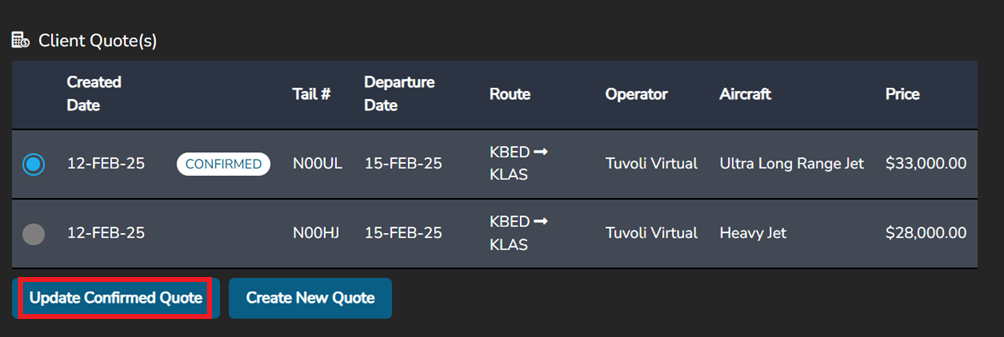
In the below example, two quotes were sent to the customer. One of the quotes was signed and confirmed.


The customer requested to change the confirmed quote to the 2nd option above for $28,000.00. To accomplish this, simply go to the opportunity dashboard, find the opportunity ID and select the highlighted "trip" icon 

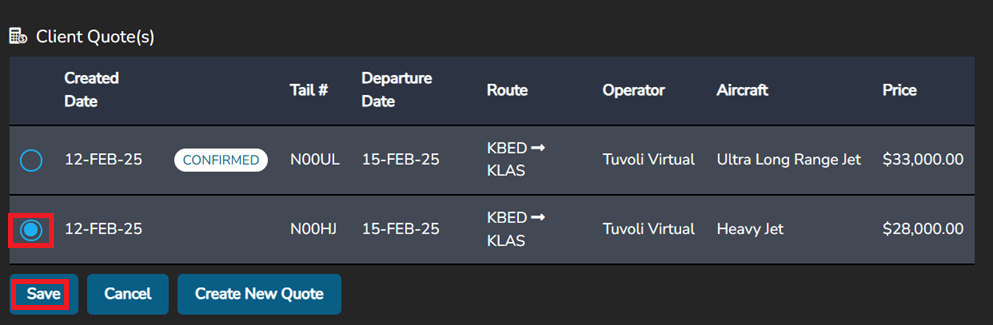
Once selected, it will direct you to the "Trip Management" page. Scroll halfway down the page to "Client Quote (s)" located on the left hand side. The two quote options are displayed with the confirmed quote clearly marked. In order to change the current "confirmed" quote to a different one, simply select "Update confirmed quote", click the radio button next to the quote you want to switch it to and save.
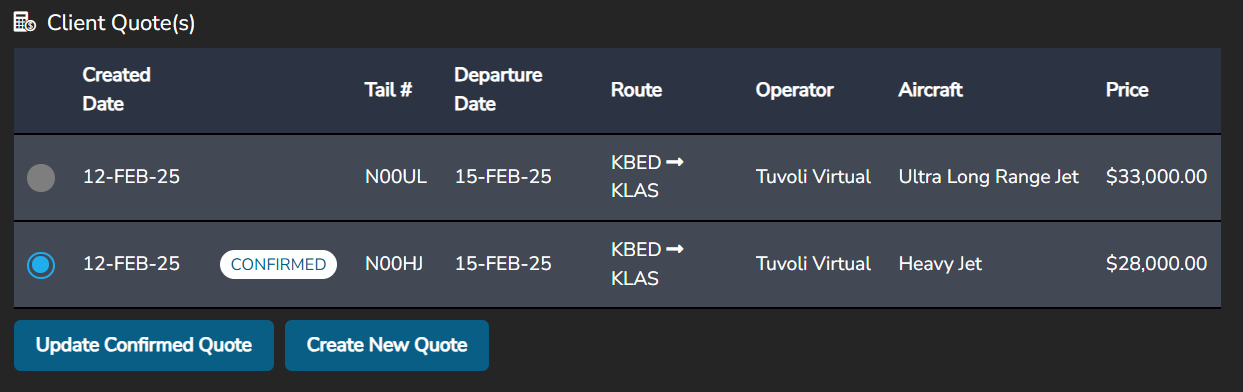
The newly confirmed quote is now marked as such. The customer's previous signature and payment option have been captured from the initial contract.
Related to