
1. Log in to your Tuvoli account.
2. From the waffle menu located in the top right-hand corner of your screen, click on ''My Employees''.
2. Click on the “Add Employee” button located in the top middle of the page. If the "add employee" button is not visible, you do not have sufficient security permissions to add an employee. Only users with admin permissions will have the feature enabled and visible. To delete an employee, click the trash can under their name, next to "View details"

To delete an employee, click the trash can under their name, next to "View details" 
3. While adding a new employee, input all required employee information (Title, Full Name. Email address and mobile # in the first drop down) and click “Next”.
4. Select all the appropriate permissions for the employee you would like to add and click “Next”.
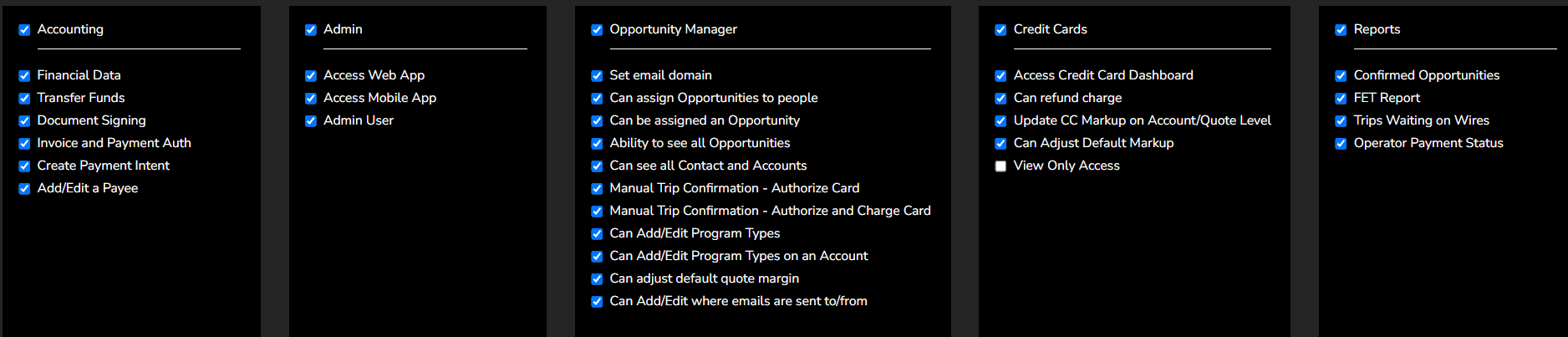
5. Review Employee Details and if no changes need to be made, click “Add”.
(If changes need to be made, click the "Back" button and make the desired changes)
6. A pop-up will confirm that the new user was added successfully and an email will be sent inviting them to the platform.