
Setting up your company's bank account in Tuvoli to transfer funds
1. Login to your Tuvoli.com account.
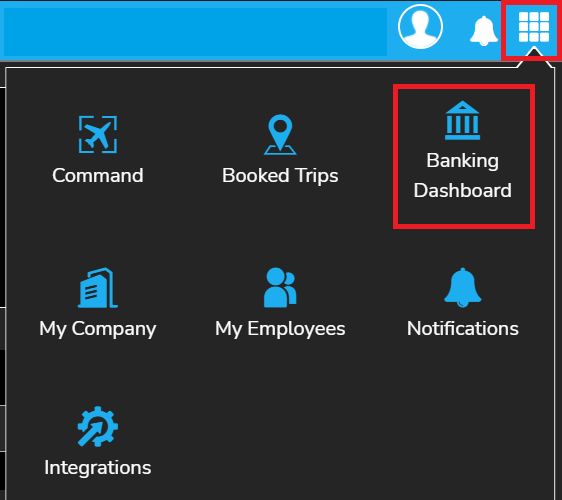
2. From the waffle menu located in the top right-hand corner of the screen, click on "Banking Dashboard".
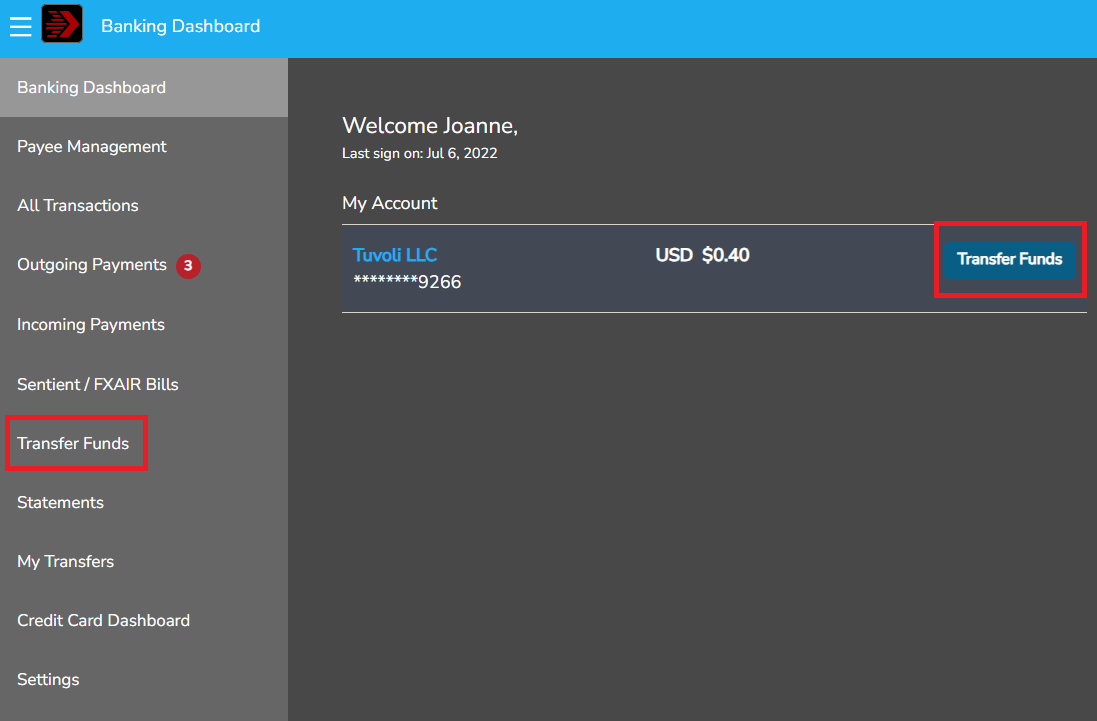
3. In the Banking Dashboard, click on the "Transfer Funds" button. There are 2 places the transfer funds option will appear.
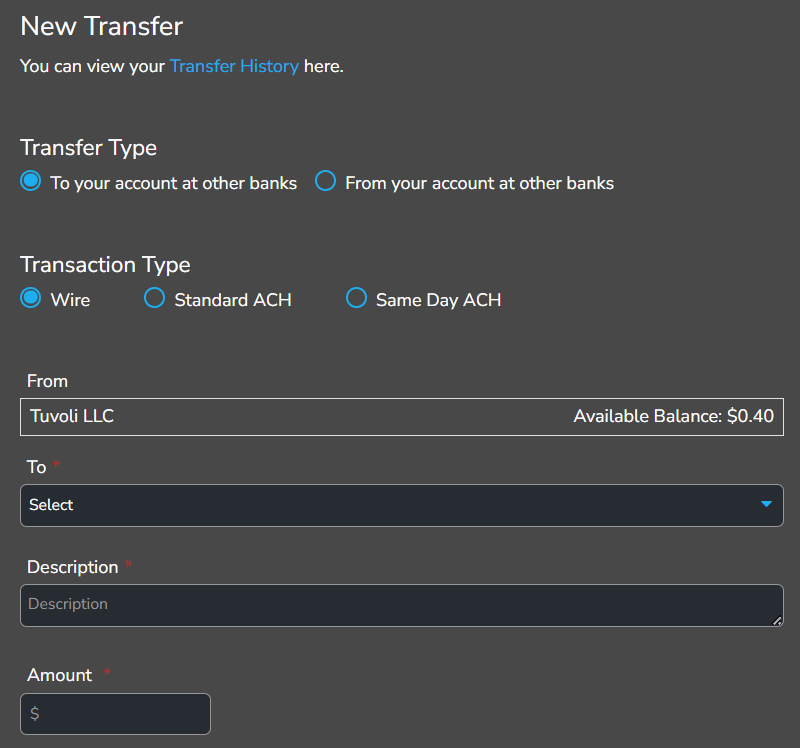
4. In the Bank Transaction Screen, when transferring funds from your Tuvoli bank account to your Commercial bank account, click on the "To your accounts at other banks" button.
6. To add your company's bank account information, click on the drop-down menu under To: and select "+ Add Bank Account".

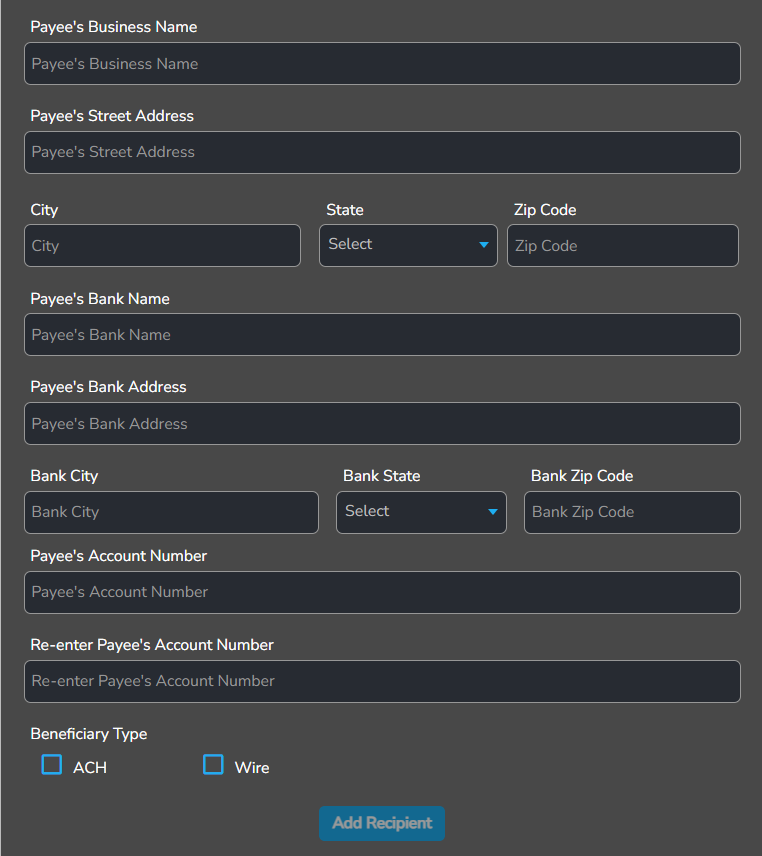
7. Fill out the form with the your company's information.
8. Under where the zip code is, click on "Don't have a net banking account or can't verify". Please do not select the option "verify your account with Plaid".
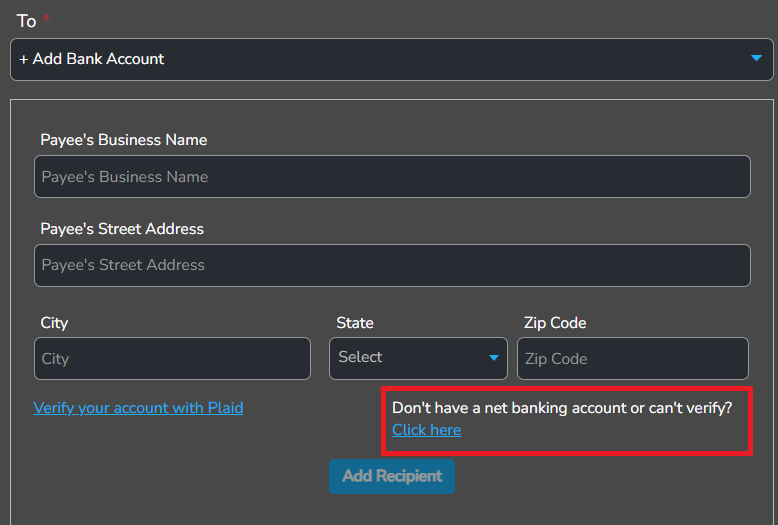
9. Once you have entered your company and full bank details (example: Chase, should be listed as JP Morgan Chase), click on the "Add Recipient" button.
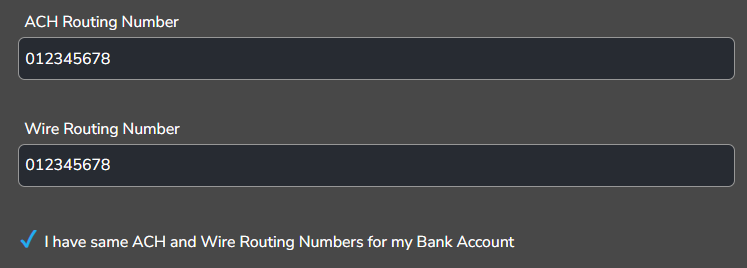
Note: Some banks have different routing #s for ACH and Wire, please confirm with your bank and select the applicable account when adding. In order to have 2 accounts, 1 for ACH and 1 for Wire simple check both boxes.
If your bank has the same routing # for both ACH and Wire, click both beneficiary type, ACH & Wire as well as the box that says "I have the same ACH and Wire Routing Numbers for my Bank Account"
10. Once the form is filled out completely, you will see a message that says "Account not verified". You have completed the form correctly, there is an additional step that needs to be taken by Customer Service (not on this screen to verify the account.)
11. Next, we need to verify the newly added account. In order for us to verify the account, we need: a copy of the first page of your bank statement or a screen shot which must include the bank logo and address, your company name and address as well as the commercial bank account number. You can redact anything you do not want us to see. Please send the information to our Customer Success team at help@tuvoli.com.
12. Once your account has been verified, your Tuvoli account and company's bank account will now be linked so you will be able to transfer funds between the two accounts.