
The purpose of this article is to walk an FXAir operator through the process of closing and submitting a trip invoice to FXAir. For FXAir trips, since invoices are based off of hard quotes, flight times do not need to be entered.
1. From the waffle menu located in the top right-hand corner of your screen, click on "Booked Trips".
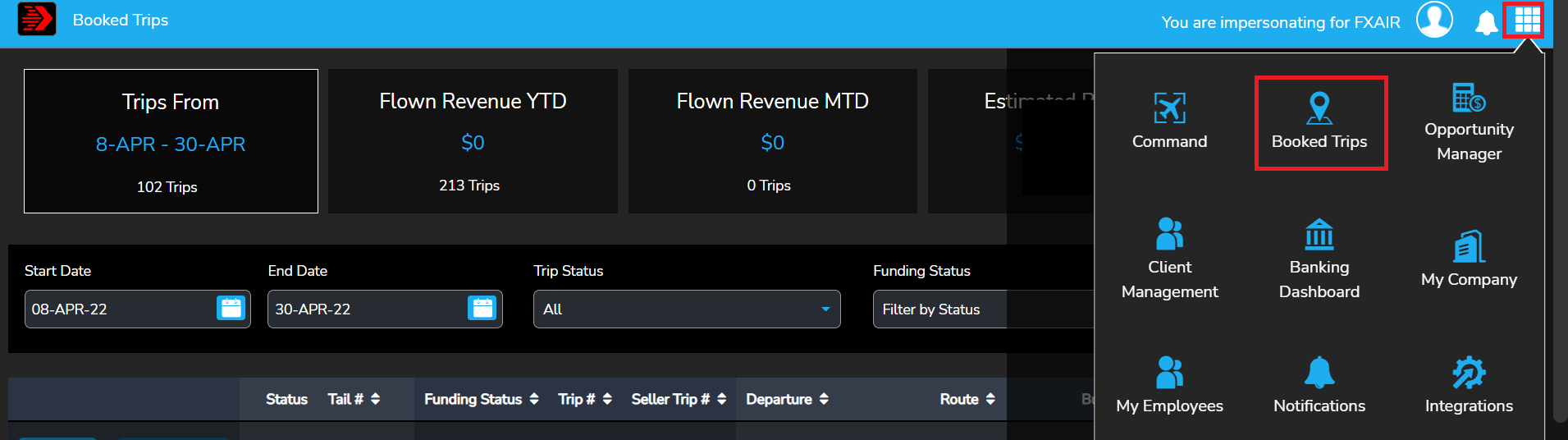
2. Recent trips will appear on-screen. You may also adjust the Start Date and End Date fields to expand your search. Additionally, you may search By Trip Status, Tail or Trip number.

3. Locate the desired trip from the generated results list and click on the "Details" button for that trip. Flight times will be displayed but again since FXAir trips work off of hard quotes, it's not required to be able to close a trip.

4. Review the trip leg information to ensure accuracy. If a trip is missing any pertinent information ie. a leg, hourly rate is incorrect, please reach out to clientservices@fxair.com to get it added.
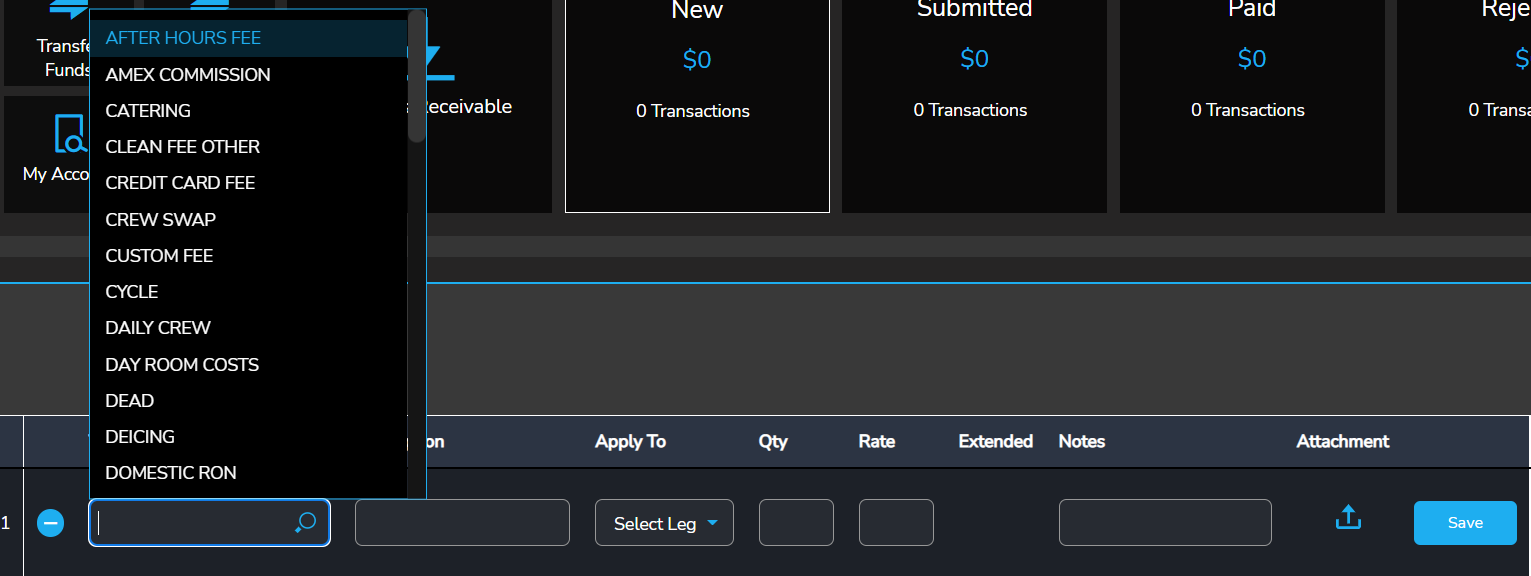
5. If you need to add trip expenses, click "trip expenses". It will open a separate window where expenses can be added via a drop down (see below). After each expense line has been added, hit save. Add any applicable documents to the expense. Once all fees have been added, click "submit expenses".


5. To close the trip and generate the trip invoice, simply click on the "Details" button for the trip.
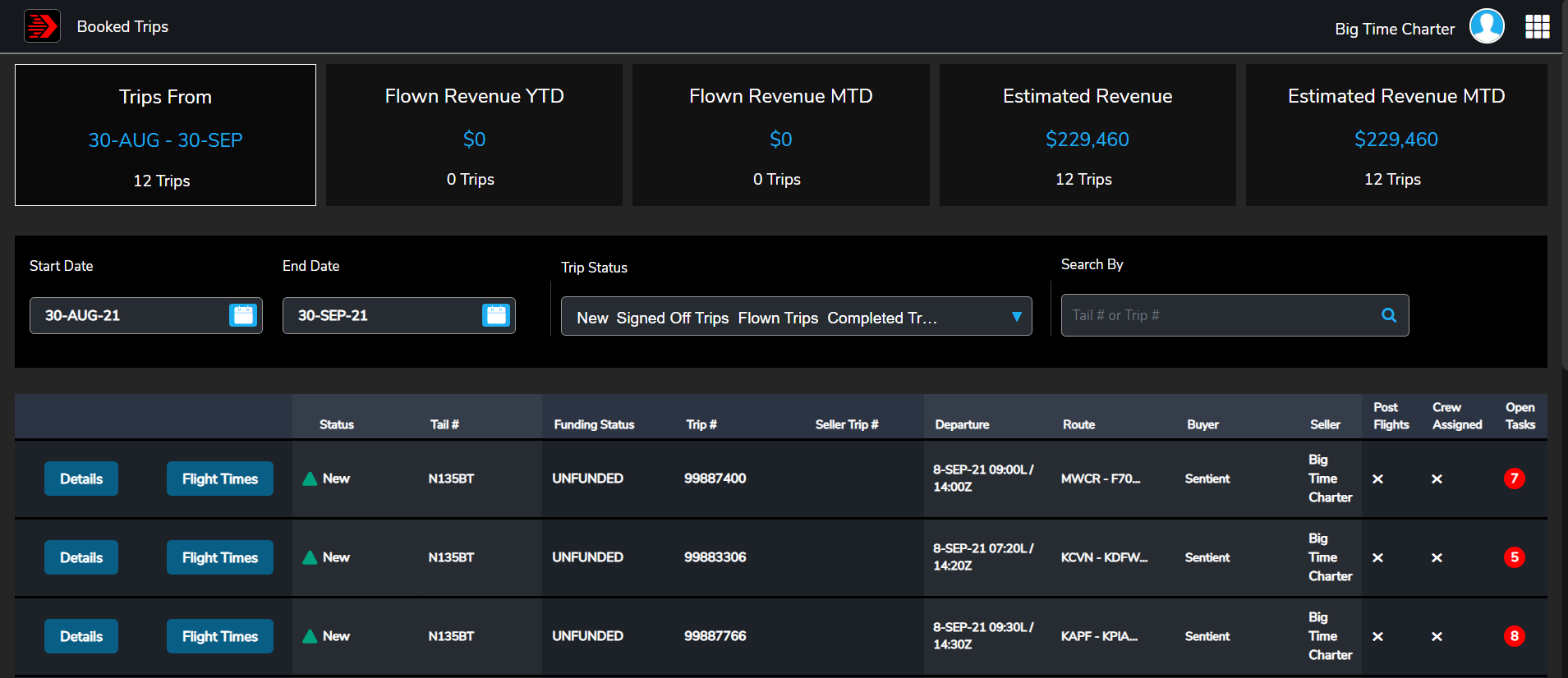
7. When the trip details window displays, click on the "Close Trip" button. This will not only close the trip, but the system will generate and display the invoice for your review.

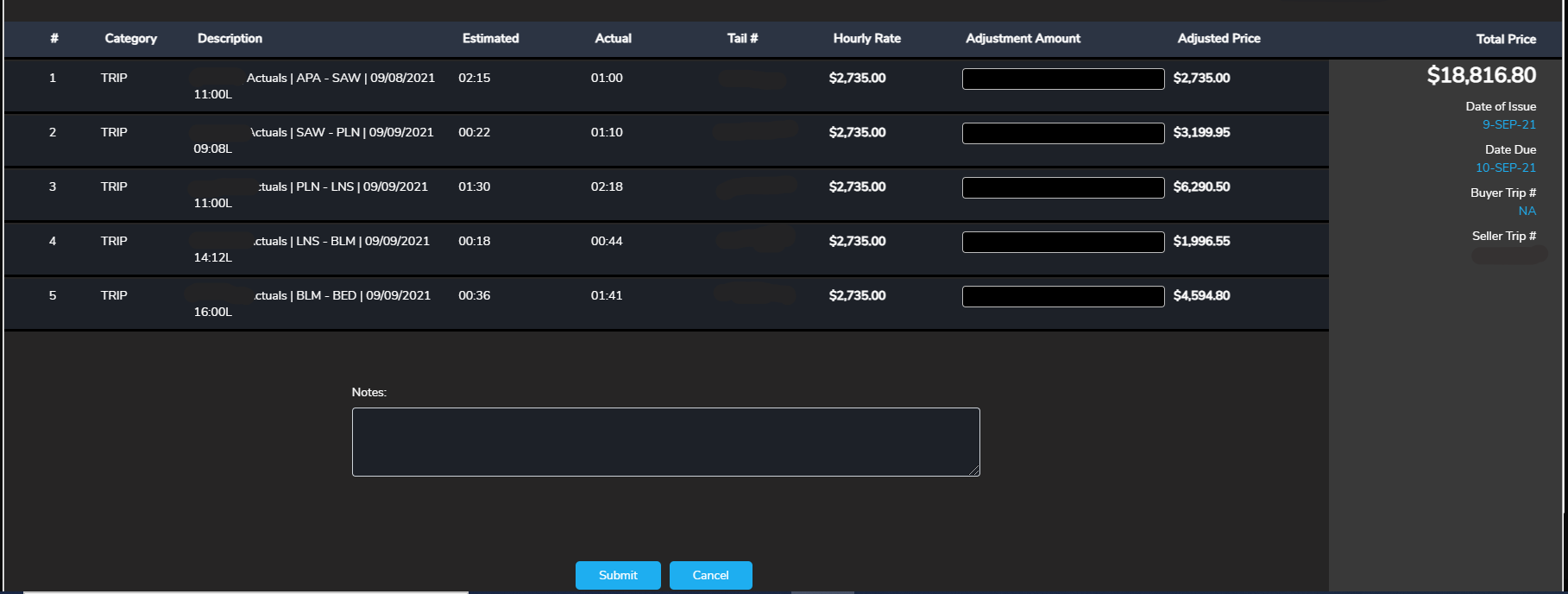
8. When the trip invoice displays, if adjustments need to be made to the trip amount (either positive or negative), enter the amount in the appropriate field in the Adjustment Amount column. Please note that comments need be entered in the Notes field at the bottom of the screen for any adjustments made to the invoice. When finished, click the "Submit" button at the bottom of the window. The trip invoice will automatically be submitted to FXAir for payment.
**For any major changes (ie. a leg is missing, hourly rate is incorrect) that need to be added to a trip, please reach out to clientservices@fxair.com
**If you have any further questions, please reach out to help@tuvoli.com