1. Log in to your Tuvoli.com account site - Please note that all notifications will be sent to the account(s) of the user making the notification changes.
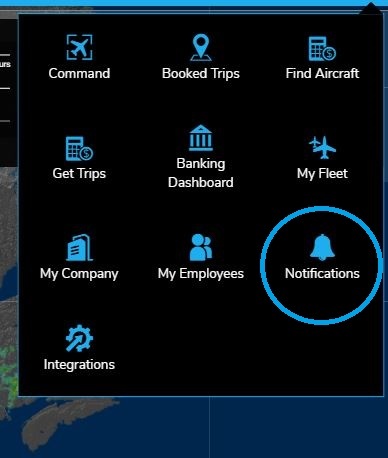
2. From the waffle menu located in the top right-hand corner of your screen, please click on "Notifications" (all notification options related to quotes will display first by default).
3. Select which Trip Activity Notifications (Trip Created, Trip Updated and/or Trip Status Updated) you would like notifications for and how you would like to be notified (UI Notification (within the Tuvoli app), SMS Text Message, Email and/or Device Notification (push notification)).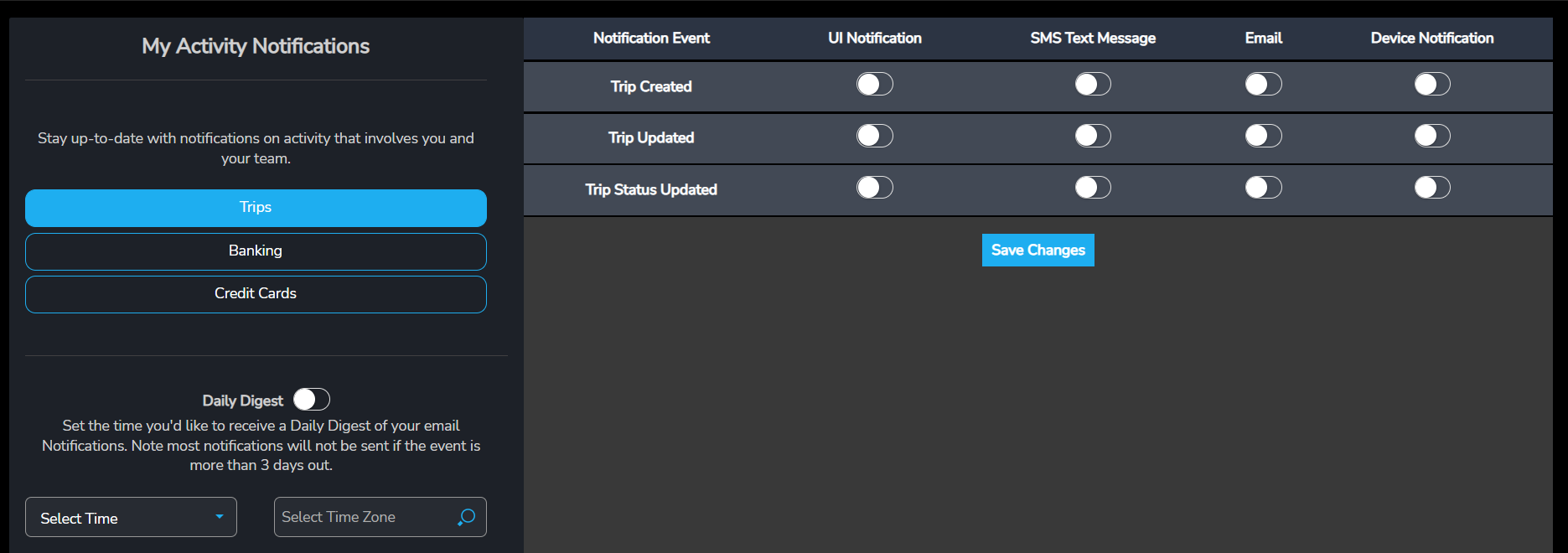
4. Click the "Save Changes" button.
5. Click on the "Banking" button (i.e.. Funds transferred to your Commercial account) and select how you would like to be notified (UI Notification within the Tuvoli app), SMS Text Message, Email and/or Device Notification (push notification).
6. Click on the "credit card" button (i.e.. credit card transaction successful or declined, as well as the reason) and select how you would like to be notified (UI Notification within the Tuvoli app), SMS Text Message, Email and/or Device Notification (push notification).
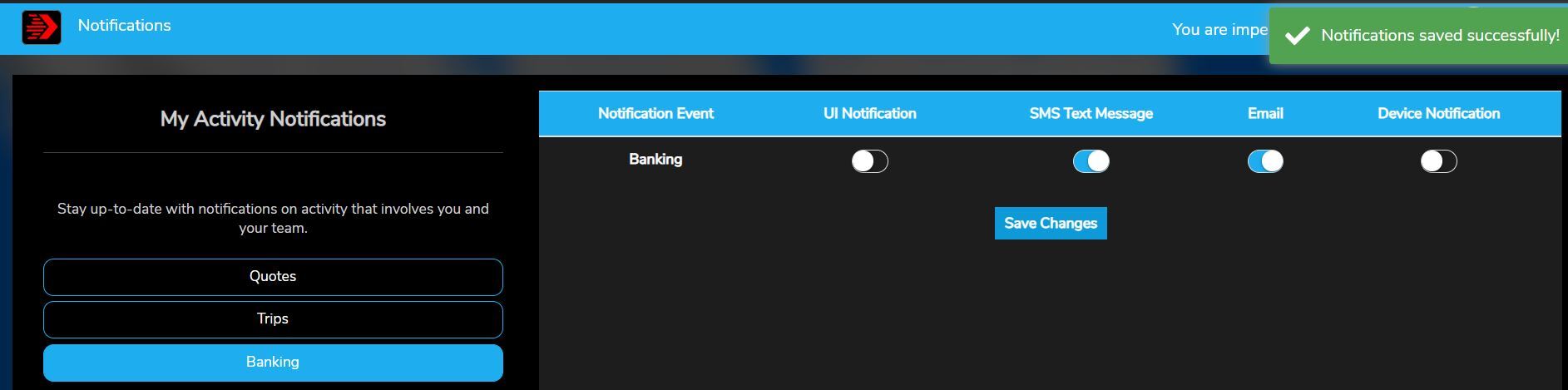
7. Click the ''Save Changes'' button. A pop-up message will confirm ''Notifications saved successfully!''
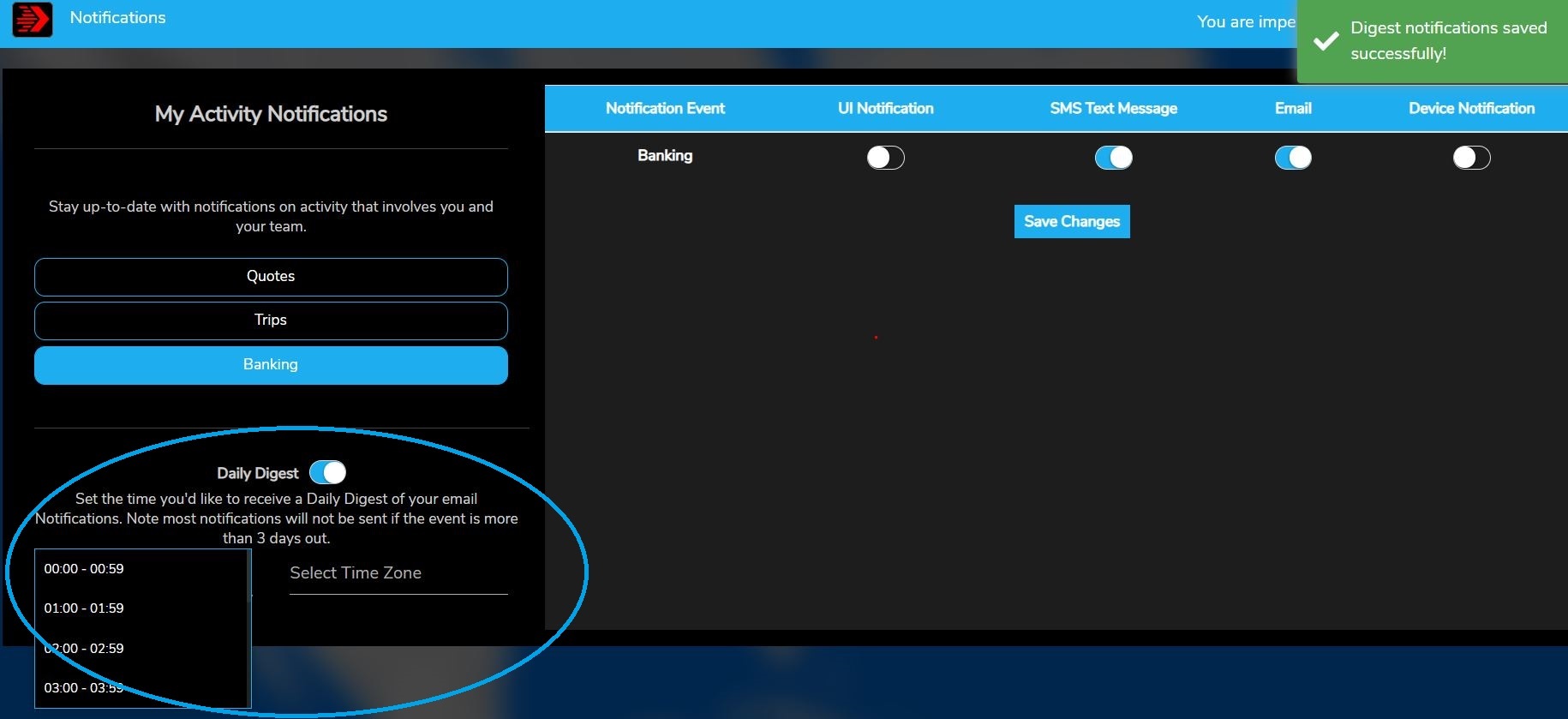
8. You may also choose to have a ''Daily Digest'' of your email notifications pushed to you at a pre-determined time. Select the desired time and appropriate Time Zone. Click the ''Save Changes'' button.