
Note: prior to processing a refund. You (as the merchant account owner) will absorb any and all credit cards fees associated with the transaction.
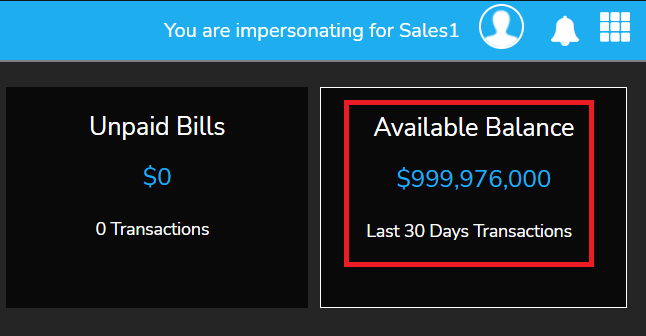
The refund will be coming out of your Tuvoli account. Please ensure the funds are available, as reflected in your "available balance", and are at least equal to the amount of the refund.
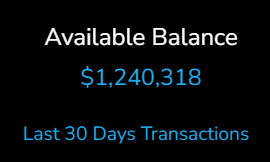
- There are two ways to obtain your available balance. The first is on the the main dashboard (when you log in).
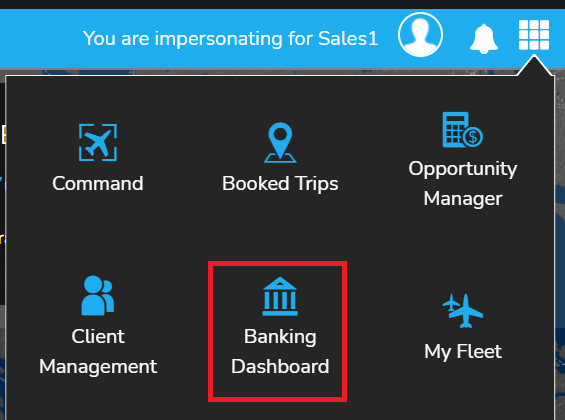
- The second is by going the Banking Dashboard. To get to the banking dashboard, go to the top right hand corner of the screen (waffle menu) and select "banking dashboard"
- Once you have confirmed there are enough funds to cover the refund, you can move to processing the refund.
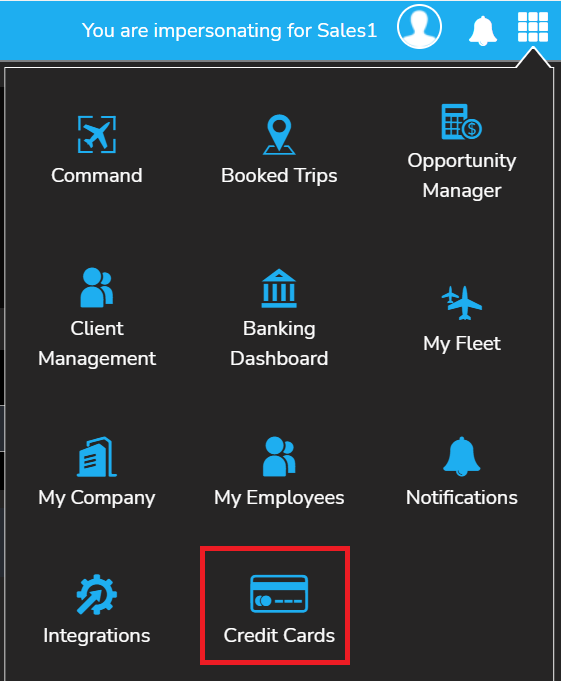
- Go back to the waffle menu (top right hand corner) and select "credit cards"
- Find the transaction you'd like to refund and select "actions"

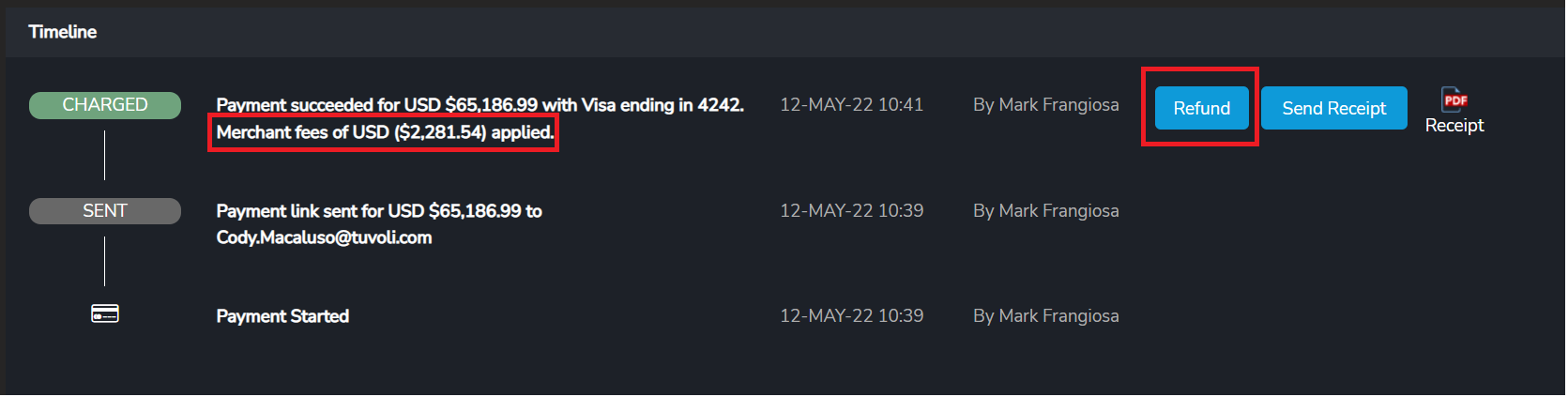
- Click "refund", note you will not be reimbured for the merchant fees previously charged.
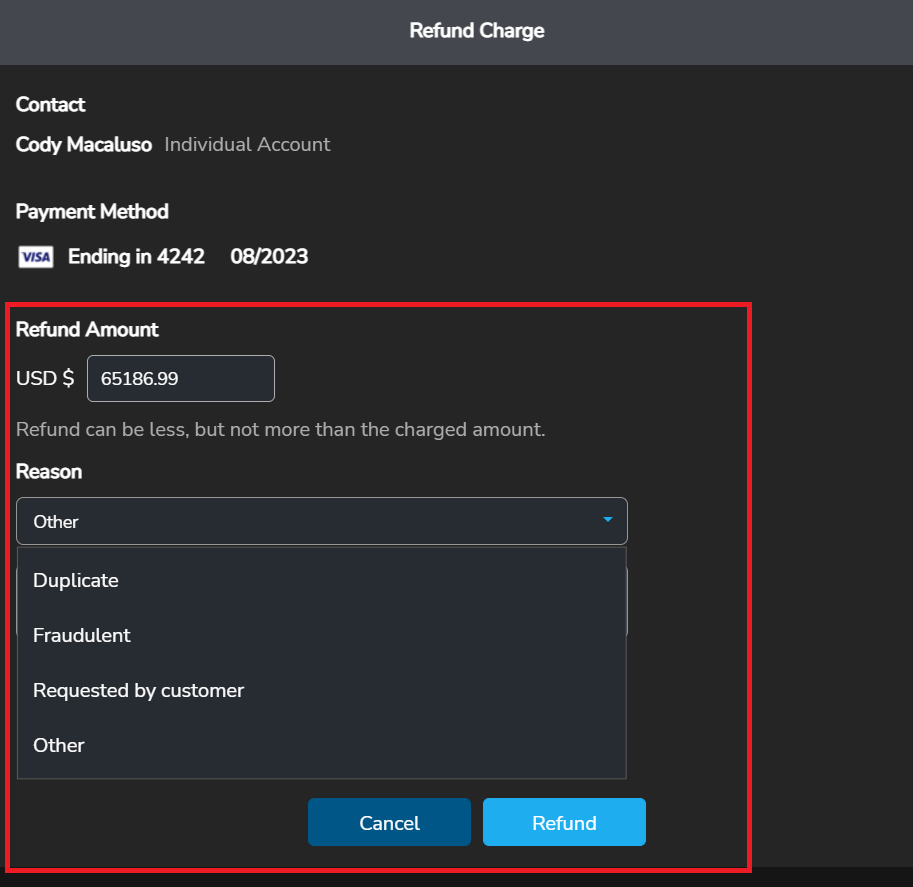
- The full amount will be pre populated but can be adjusted, select the reason, click "refund"
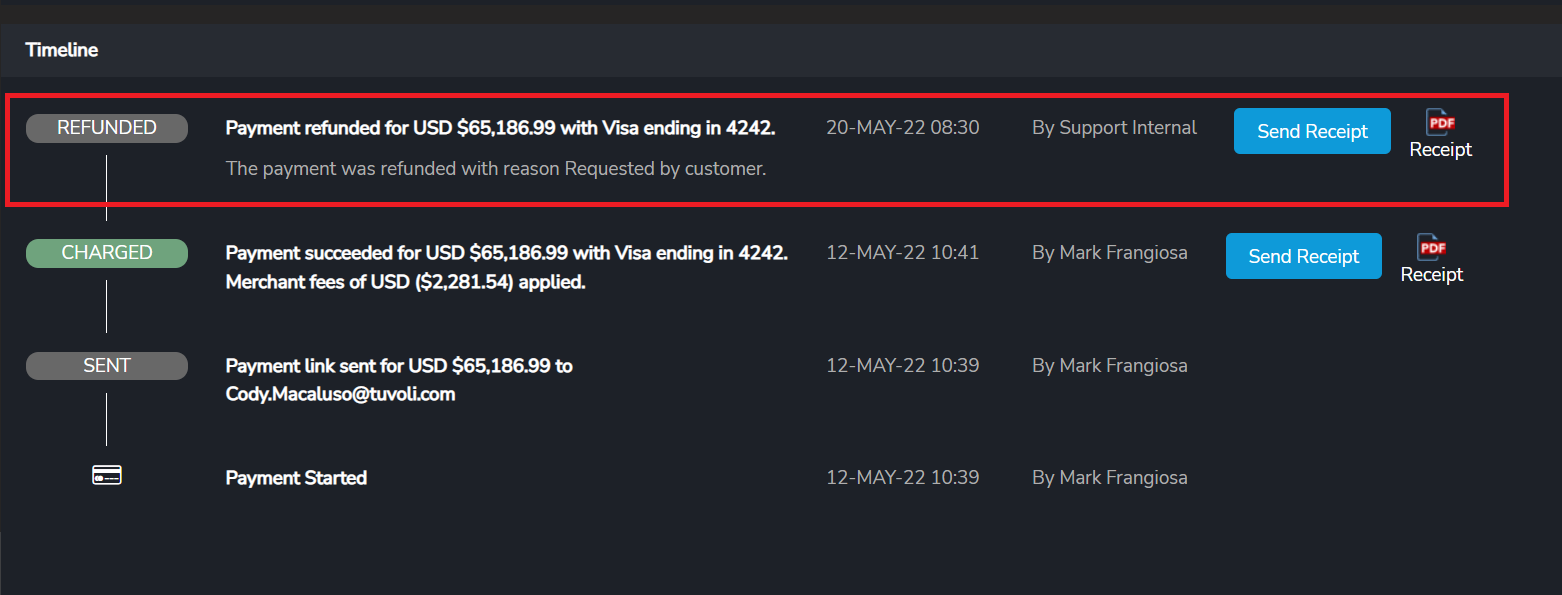
- After processing the refund, you will be brought back to the main screen of the credit card dashboard. An email will be sent to the client advising them of the refund.
- The transaction will show "refunded", click "view" to view the refunded transaction, send a copy receipt of the refund or download a PDF.

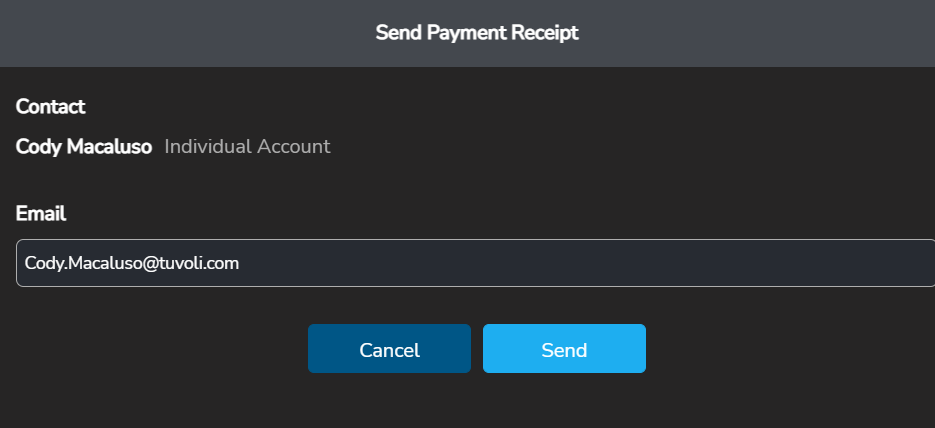
- Manually email a refund receipt
Best Practices to Help Prevent and Defend Chargebacks