The purpose of this article is to provide an overview of the Account page in FlyEasy.
1. Once you have logged into your FlyEasy account, please click the "Account" button located in the vertical menu bar on the left side of your screen.
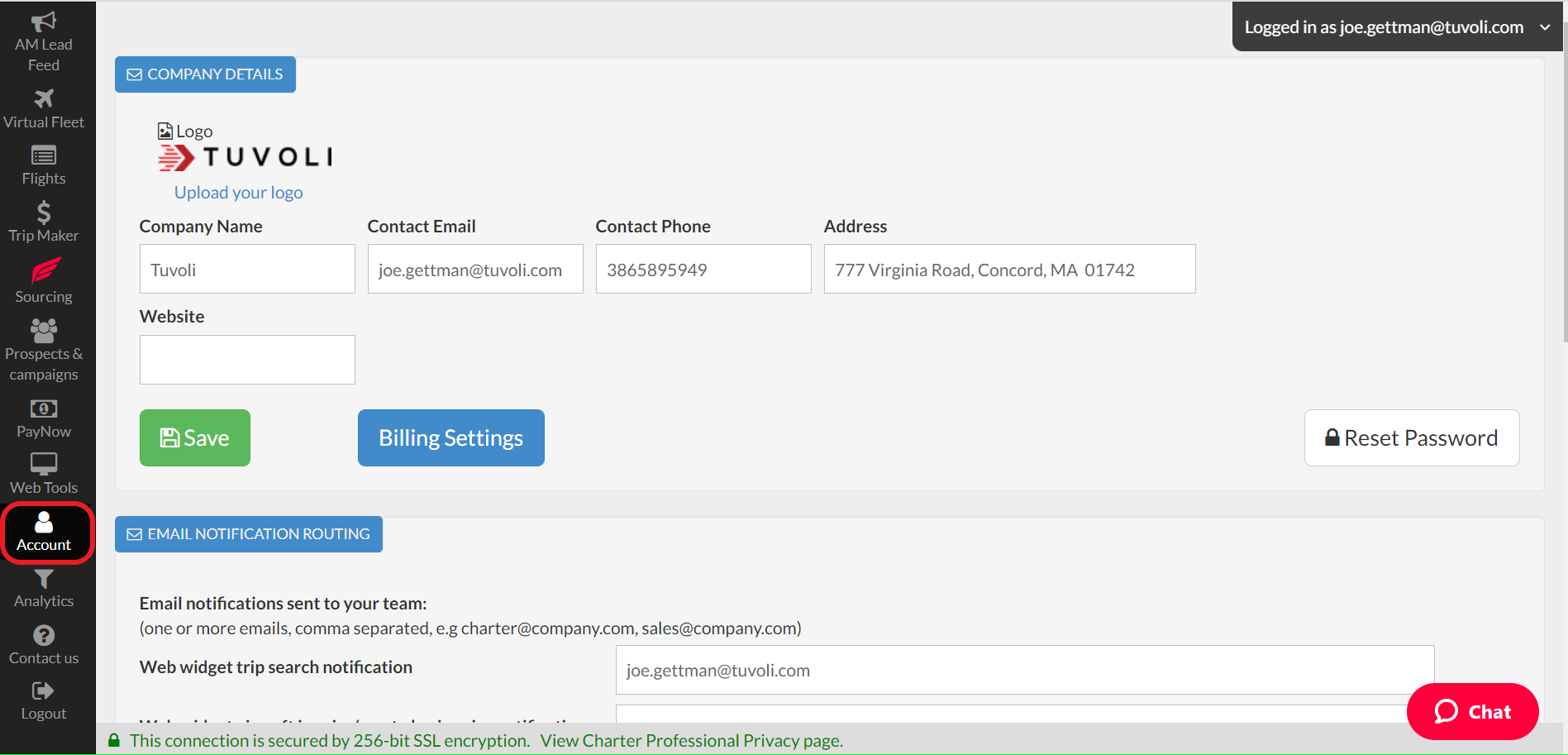
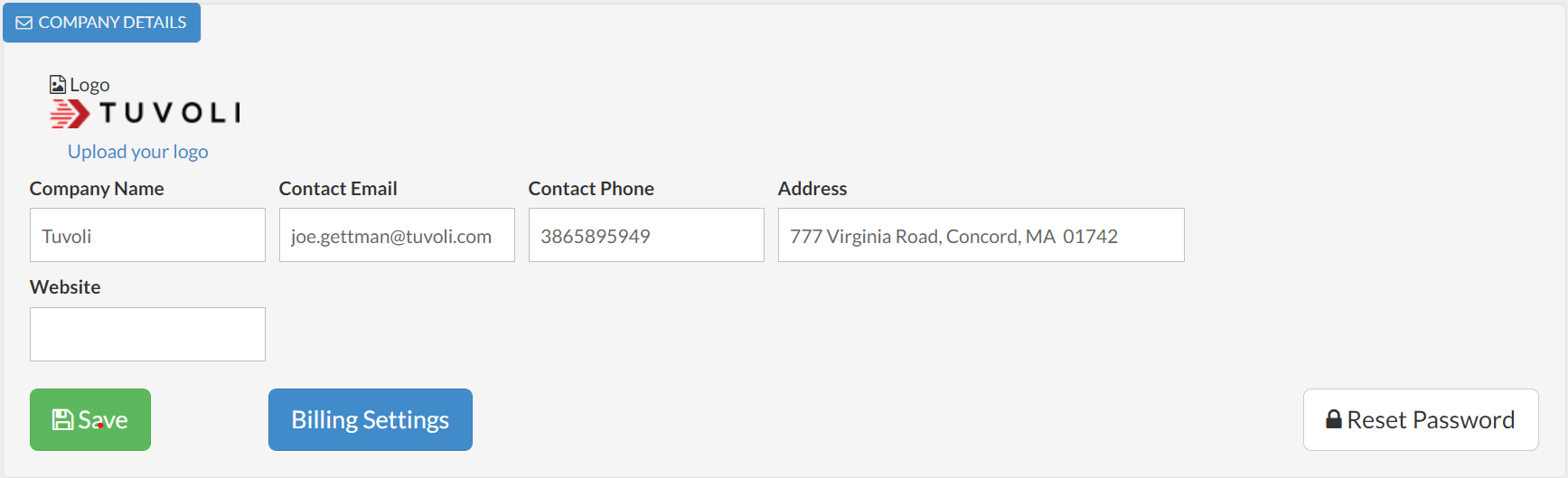
2. The top of the Account page contains your company's information. In addition to uploading your logo, be sure to enter the appropriate data in the remaining fields. Please note, you can make changes to your billing (i.e. your credit card on file) by clicking on the Billings Settings button in addition to resetting your account password. FlyEasy- Billing (view invoices, update credit card or billing information)
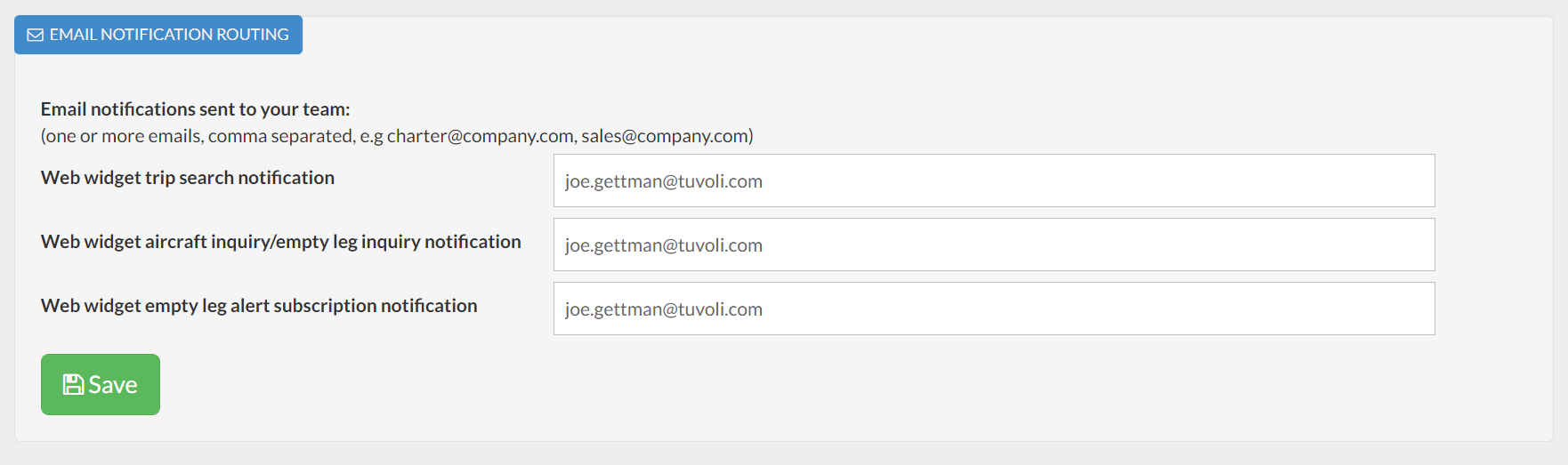
3. The Email Notification Routing section allows you to enter the email(s) that you want specific notifications sent to. Each section provides you with a detailed description of the notification type. Please keep in mind that if your FlyEasy subscription does not include a web widget, then this section will not apply to you.
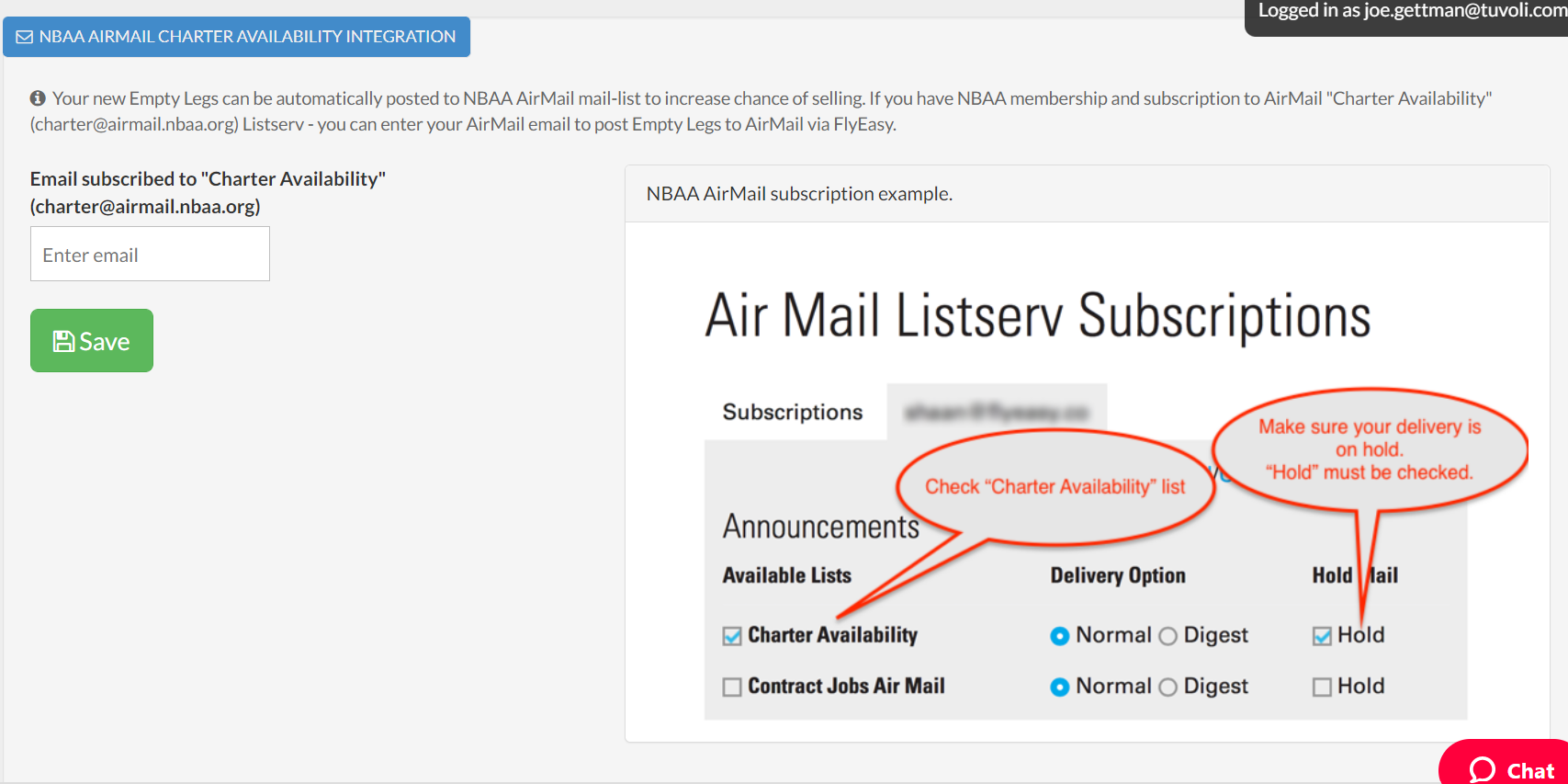
4. The bottom of the Account page is for companies with an NBAA AirMail email address. By entering your NBAA AirMail email address, you will be able to post wants/needs to the NBAA AirMail trip board. Instructions for posting to this trip board can be found on the AM Lead Feed page.