
- After your client clicks the "
 ", it will bring them to the Docusign client check out
 - Clicking "continue" will walk them through the check out process
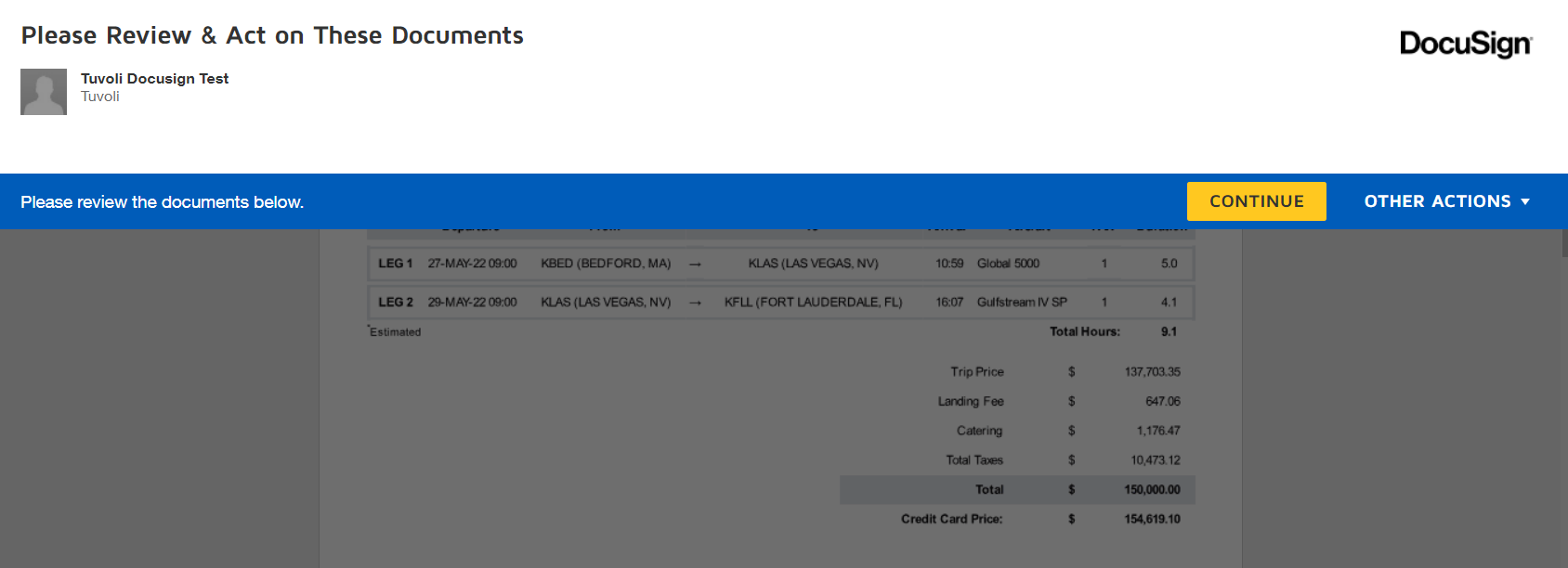
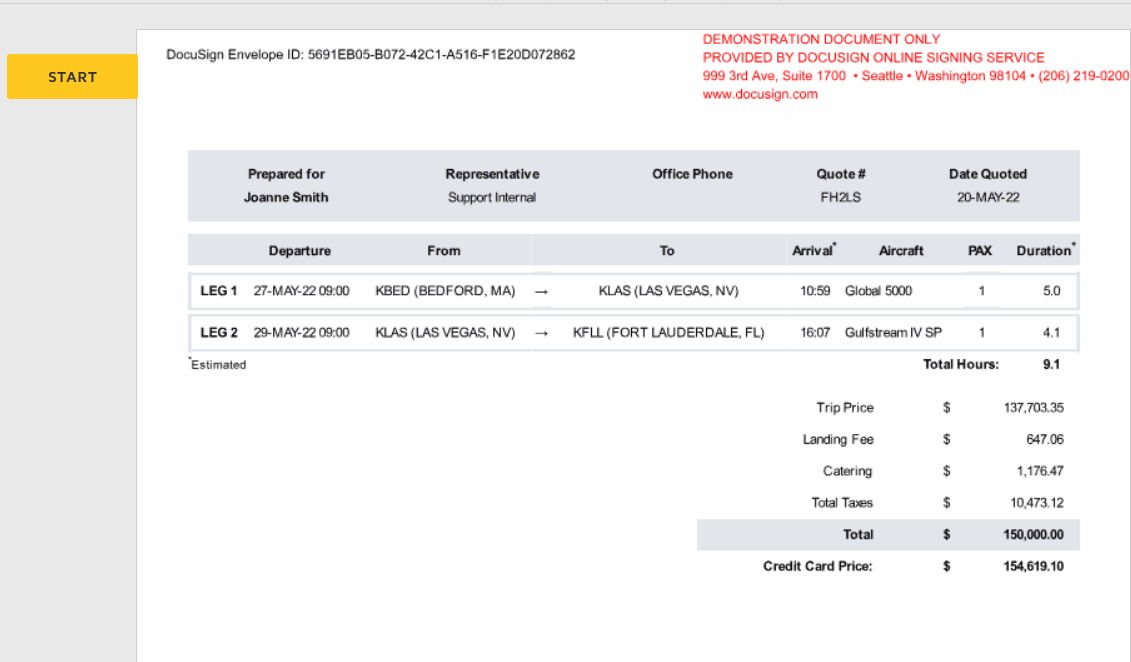
- Clicking "start" will walk them through the quote and require a signature to proceed further.
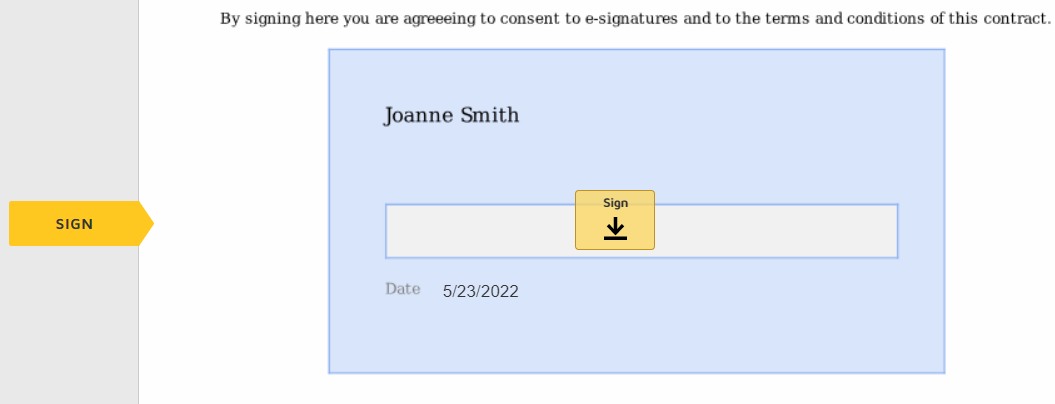
- Once the required signature has been obtained, docusign will bring them to the top of the form where they click "finish"

- From there, it will bring them to the client check out.
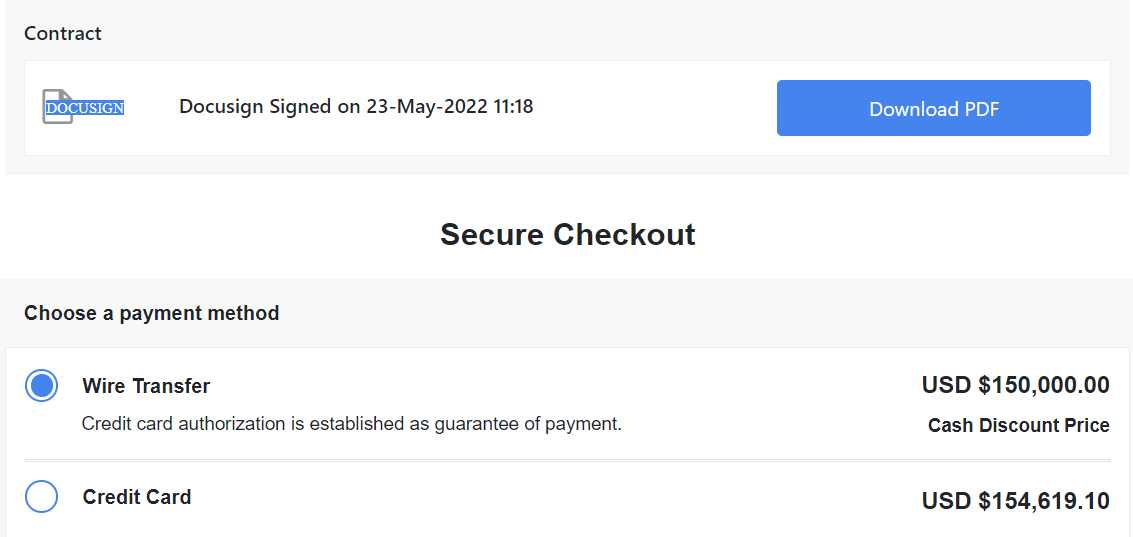
- During the checkout process the client, can download a copy of the quote in a PDF. They can also choose if they will be paying for the trip via a wire with a credit card hold or pay for the trip with a credit card.
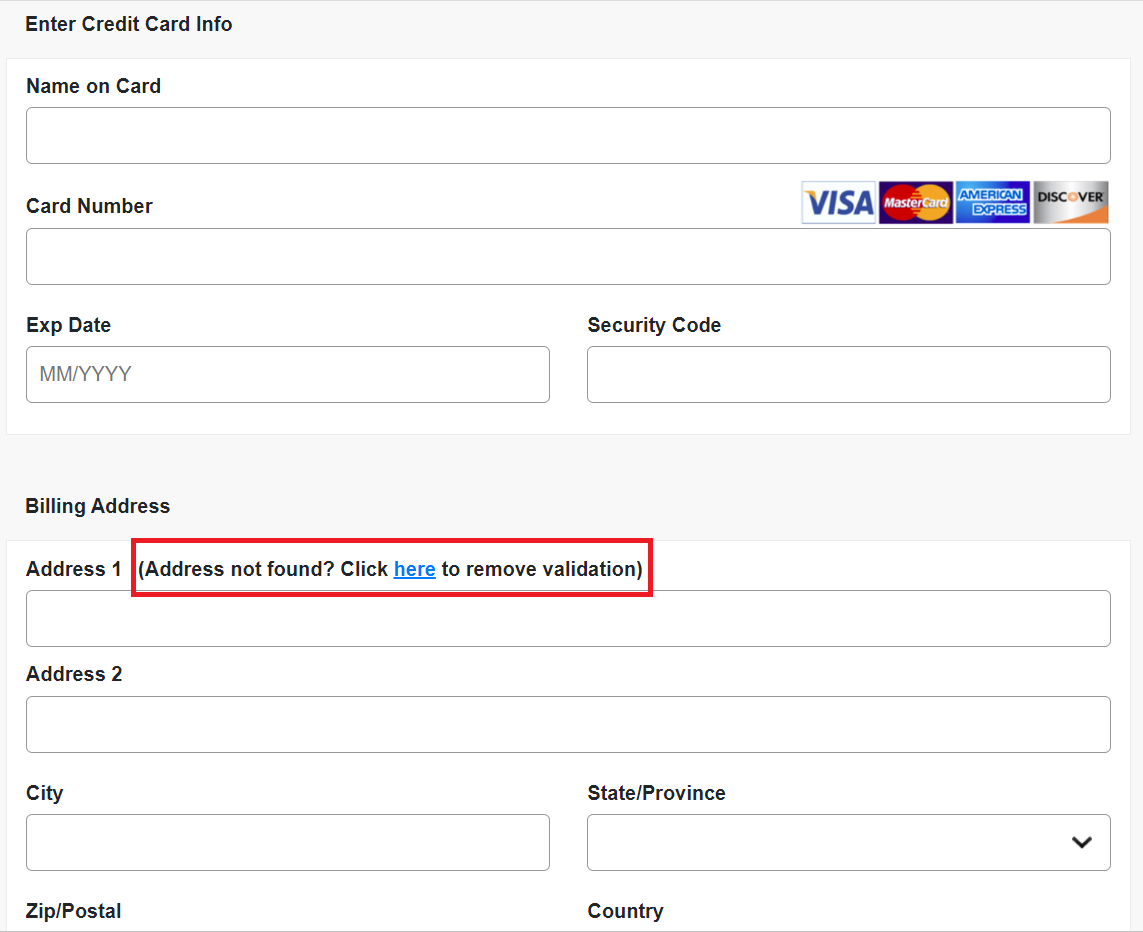
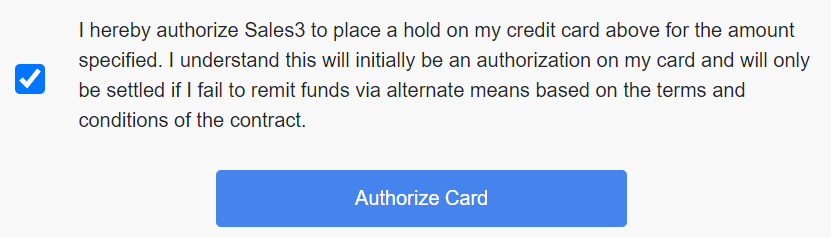
- Payment details are entered including the full credit card#, expiration date (MM/YYYY), CVV2 and billing address. Once all of the appropriate information is entered, they check that they are authorizing the payment and click "authorize card"
- IF the customer's address is not populating using the google look up, select "click here to remove (address) validation". You will typically run into this when processing credit cards from other countries.
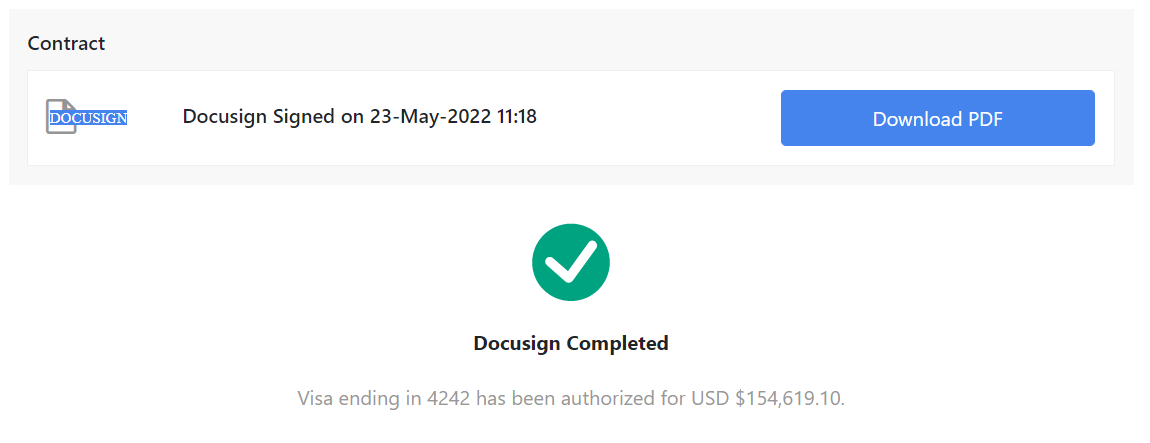
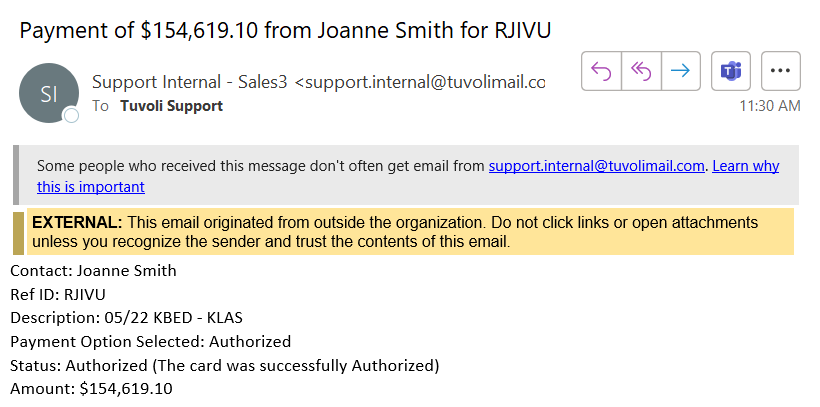
- Once the payment is processed the following screen will show where a copy of the signed client contract can be downloaded. The Client and Sales person will also receive an email advising of the payment.
- My Client signed the quote and used a credit card for payment, what do I do next? Click the link below to bring you to the next article explaining the next step in the process Opportunity Manager- My client signed and paid for the trip, what's next?