
Before you begin, please ensure you have the following items available to complete the Merchant Services set up process:
- Tuvoli Bank Account information (instructions on how to access account & routing numbers below)
- Company legal business name
- EIN/Tax ID (as listed on your W9)
- Mobile number associated with your Tuvoli account for MFA
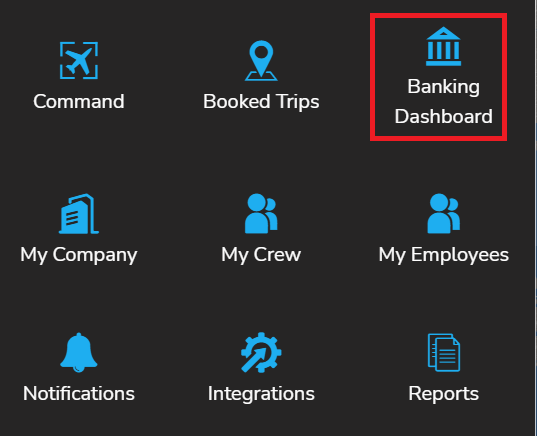
To obtain your Tuvoli bank account and routing #, go into your Tuvoli account. In the top right hand corner (waffle menu), select "banking dashboard"
Click "Settings" on the bottom left hand side of the screen

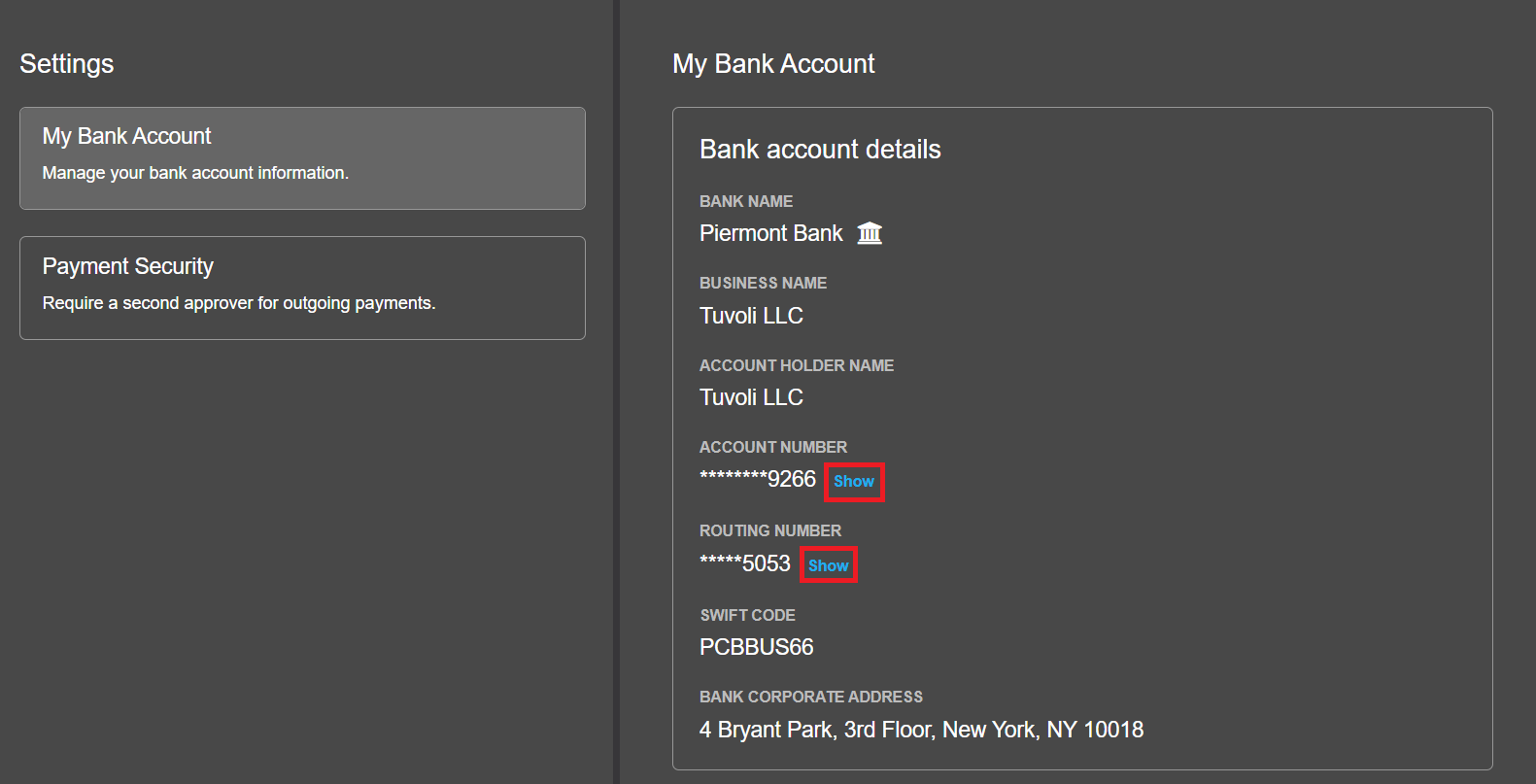
This will bring you to the settings page where you can obtain the account and routing# by clicking "show"
To sign up for Merchant Services:
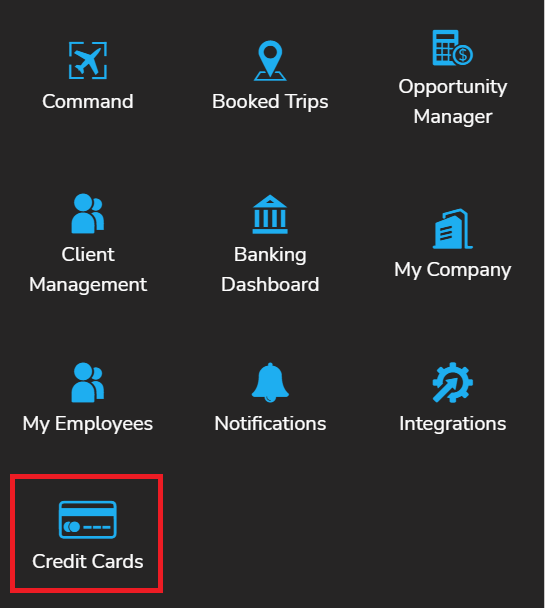
1. From the Waffle Menu, click on the "Credit Cards" icon.
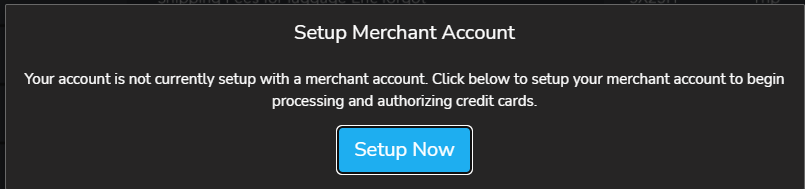
2. Select "Setup Now"
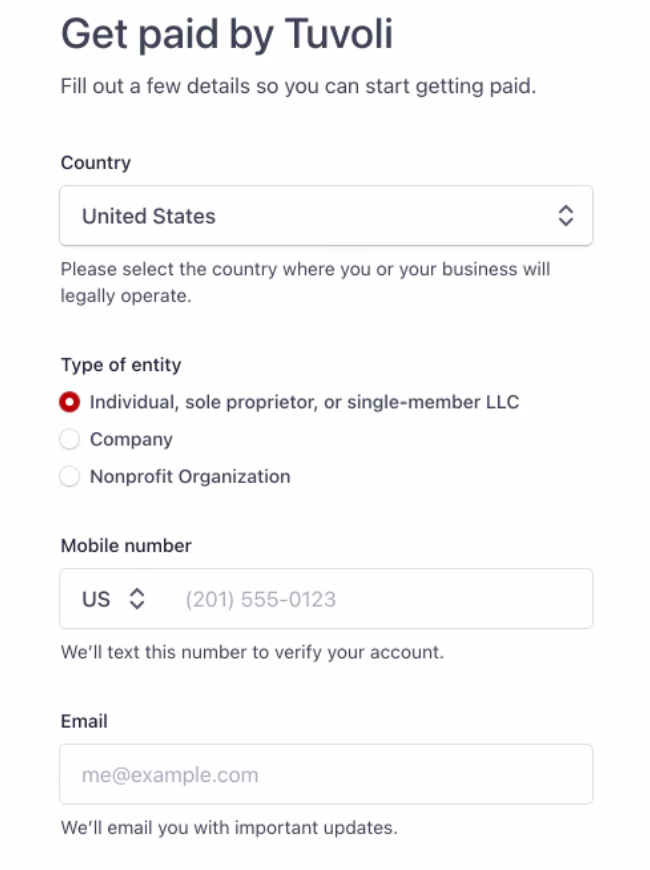
3. Enter contact information and entity type and click "Next".
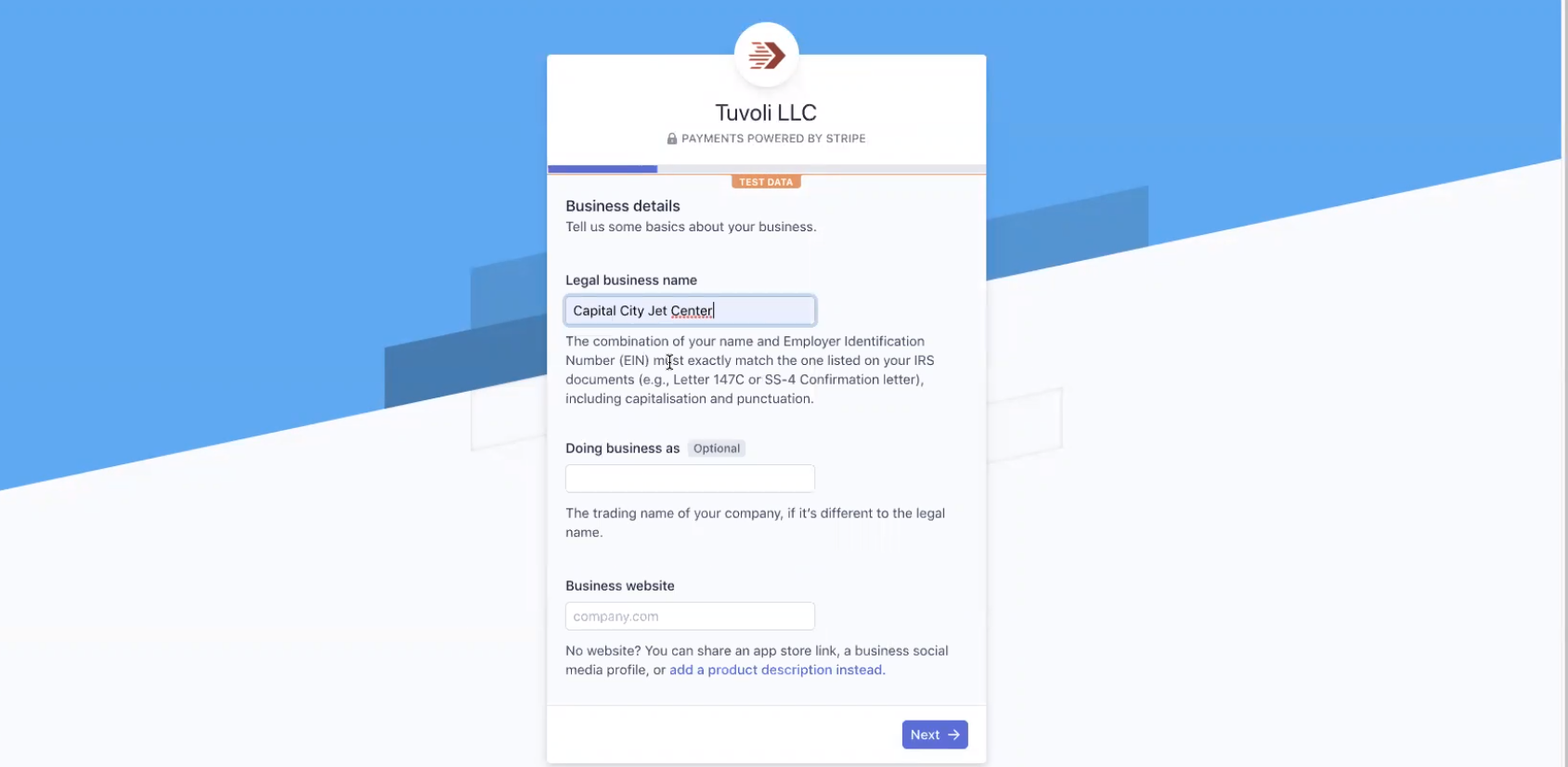
4. Enter business details and click "Next".
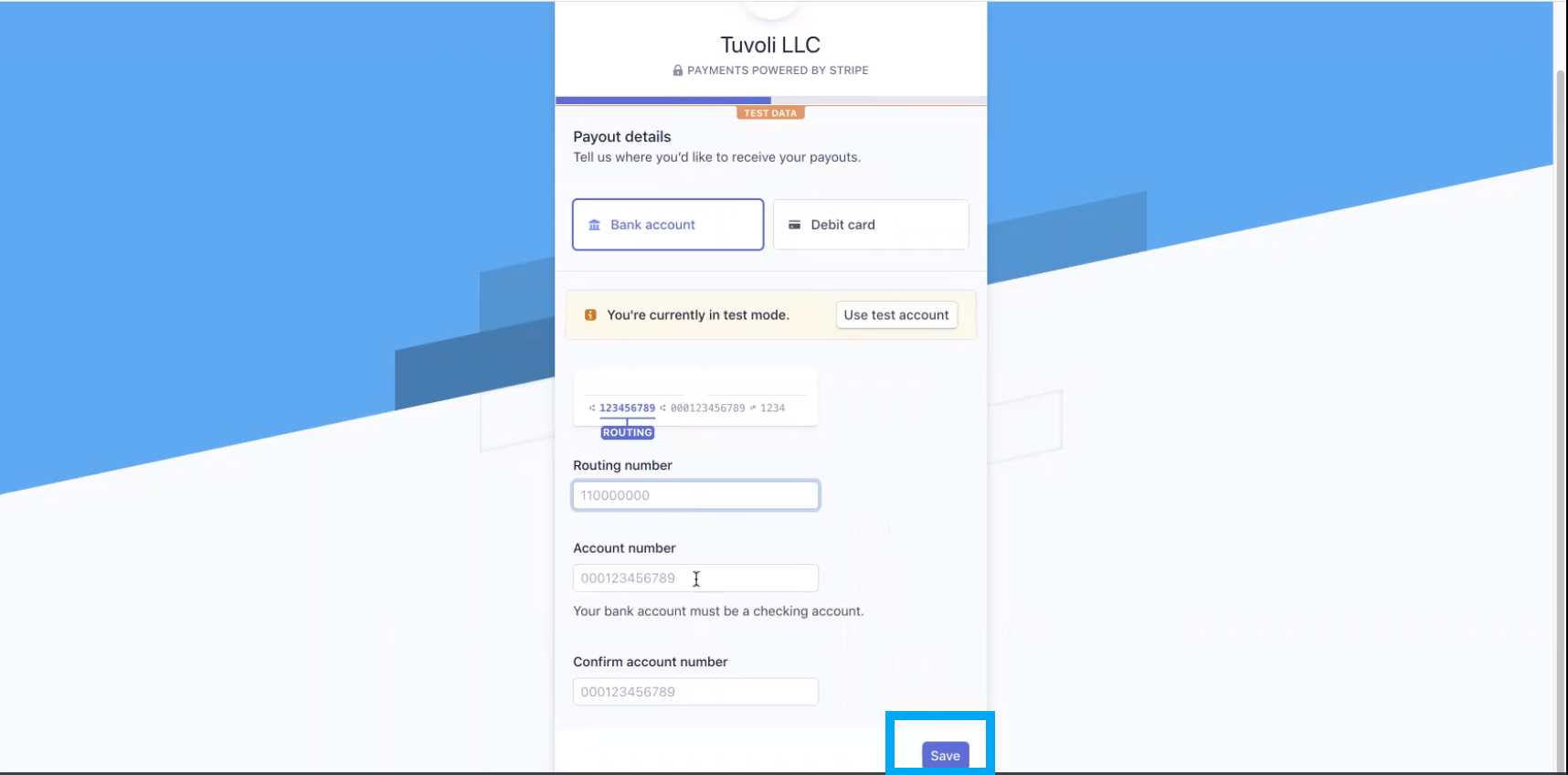
5. Enter payout details-your Piermont Bank account information must be entered in this field. Instructions to obtain the information are at the top of this FAQ. Again, please do not list your company's commercial bank account. If you do, your account set up and ability to process could be delayed.
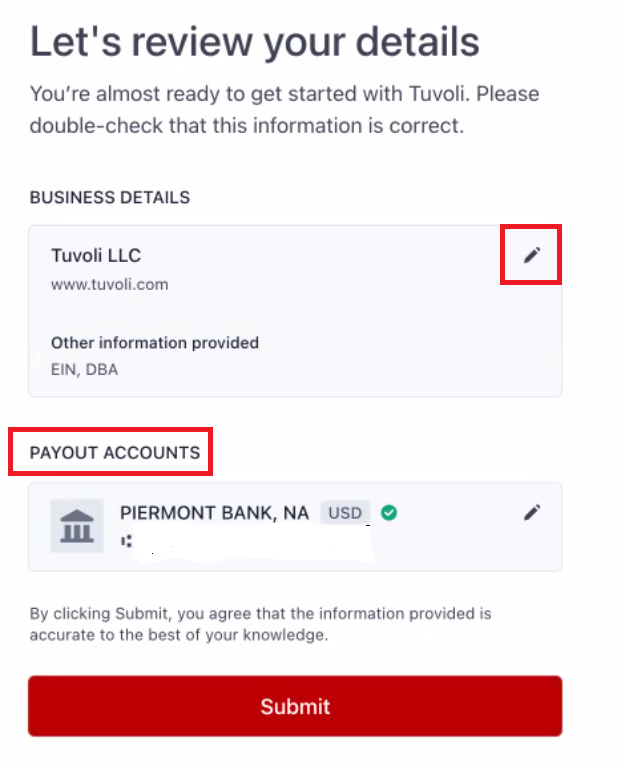
6. Review your account details. Under "Business details", click the pencil to enter your company EIN. "Payout account", again, this should be your Tuvoli Piermont banking details. Tuvoli- How to set up your Tuvoli Bank Account
7. It will take approximately 1 minute to verify your account. After that, you will be notified of successful completion.
Note: When processing a customer refund Merchant Services- Credit cards (processing a refund):
- You (as the merchant account owner) will absorb any and all credit cards fees associated with the initial transaction.
- The refund will be coming out of your Tuvoli account. Please ensure the funds are equal or more than the amount to refund.
- To obtain your available balance, click on the "banking dashboard" (as listed in step 1 above), or the Tuvoli symbol in the top left hand corner. This will bring you to the home screen.

- To obtain your available balance, click on the "banking dashboard" (as listed in step 1 above), or the Tuvoli symbol in the top left hand corner. This will bring you to the home screen.
- For other important information on credit cards including chargebacks, click on the below article.